 tacey
tacey Install on Shopify
A customer places an order. Ten minutes later, a second order from the same person appears in your queue. Then comes the email: "Hi, can you combine my orders to save on shipping?" This scenario is a daily reality for many Shopify merchants, turning a moment of customer loyalty into a logistical puzzle.
Handling these requests properly saves money, reduces waste, and creates a positive customer experience. Getting it wrong, however, can lead to shipping errors, confused inventory counts, and frustrated support staff. This guide provides a standard operating procedure for when and how to combine orders on your Shopify store.
The cost of a mistake is not just the price of a replacement product. It includes the second shipping label, the staff time spent handling the support ticket, and the potential loss of a customer. A single bad address or a mis-packed box creates a cascade of costs, creating a silent drain on your profit margin.
What Does "Combine Orders" Mean on Shopify?
On Shopify, "combine orders" means packaging items from two or more separate orders into a single shipment. This process results in one box and one tracking number, lowering shipping costs for the merchant and offering convenience, plus a potential shipping refund, for the customer.
Shopify does not have a native, one-click function to merge orders. Each order is a distinct record with its own payment, fulfillment status, and history. Combining them requires a clear manual process or a dedicated third-party app to manage the complexity without disrupting your store's data.
This design choice prioritizes data integrity. An order is treated like a financial receipt: once it's created, it shouldn't be altered in a way that breaks the audit trail. Merging orders fundamentally changes these records, which is why Shopify leaves the complex task to specialized apps that can manage the process carefully.
Why Do Customers Place Multiple Orders?
Understanding why this happens helps in creating a better process. A customer isn't trying to create extra work; they are usually acting on an immediate impulse. They might have forgotten an item, discovered another product right after checkout, or placed a second order to meet a free shipping threshold they just missed.
This behavior is often a natural response to the modern ecommerce experience. A customer might see a retargeting ad on social media for a product they browsed earlier, purchase it, and then see another compelling item from your store in their feed just moments later. This creates two distinct purchase moments.
Sometimes, a sense of urgency, driven by marketing, is the cause. A "limited stock" alert or a countdown timer can prompt a quick purchase. If the customer then continues browsing and finds another item, it results in a second order. They are acting logically within the scenarios you've created.
Whatever the reason, viewing the request as an opportunity is the first step. The customer is engaged enough to return within minutes, a strong signal of interest. Getting a customer to place a second order is a significant hurdle; when it happens this quickly, it marks a valuable interaction worth fostering.
Should You Always Combine Orders?
You should combine orders when your fulfillment workflow can handle it without introducing errors. For most stores, the benefits of improved customer satisfaction and lower shipping costs outweigh the minor administrative effort involved. It shows you're paying attention and are willing to provide a better experience.
However, the answer might be "no" if your fulfillment is highly automated and happens very quickly. If an order is picked and packed minutes after it's placed, the window to manually intervene is too small. In these cases, it's better to have a clear policy explaining why you cannot combine shipments post-payment.
Establishing a clear, public policy is crucial regardless of your choice. If you combine orders, document the specific cutoff time in your shipping policy. If you don't, explain why in your FAQ page, citing your rapid fulfillment process. This transparency manages customer expectations upfront, reduces support tickets, and ensures your team applies the rule consistently.
Edge Case: Pre-Orders and Split Shipments
The standard advice can break with complex orders. Imagine a customer places one order for an in-stock T-shirt and a second order for a hat that is on pre-order. Combining these is a mistake. The in-stock item would be held until the pre-ordered item is ready, leading to a long, unexpected delay for the customer.
The same logic applies to items shipped from different locations. If one order contains an item from your warehouse and the second has a print-on-demand or dropshipped product, they cannot be physically combined. Your process must be smart enough to identify these scenarios and treat them as separate shipments.
The Manual Method for Combining Shopify Orders
If you don't have a high volume of these requests, a manual process works well. It requires careful attention to detail but no extra app costs. This method is the foundation for any automated system you might adopt later.
- Confirm the Shipping Address: First, verify that both orders are going to the exact same customer and shipping address. An assumption here can lead to a costly mistake.
- Pack All Items Together: Gather the items from all relevant orders and pack them into a single box. Print the packing slips from each order to include in the shipment.
- Purchase One Shipping Label: Choose one of the orders (often the first one placed) to be the "primary" order. From that order's page in your Shopify admin, purchase a shipping label for the combined weight and dimensions of the single package.
- Fulfill All Orders: Mark the primary order as fulfilled using the label you just created. Then, copy that tracking number. Go to the other order(s), click "Fulfill items, " and paste the same tracking number. This ensures the customer gets tracking updates for all their orders.
- Refund Extra Shipping: Once everything is fulfilled, calculate the shipping cost the customer overpaid. Go into the secondary order(s), click "Refund, " and enter the shipping amount you wish to return. Leave the product quantities at zero.
A critical detail: fulfilling the second order this way leaves two separate "fulfilled" orders in your history for one shipment. This can slightly complicate your analytics if you track orders instead of shipments. However, it is the safest manual method. It ensures that the customer's order history is complete and that all items are correctly marked as sent.
The primary risk of the manual method is human error. Copying the wrong tracking number can lead to a WISMO ticket, refunding an incorrect amount hurts your margin or the customer relationship, and accidentally restocking an item creates inventory discrepancies. While effective at a small scale, this process becomes less reliable as order volume grows, increasing the chance of costly mistakes.
A Worked Example: Combining Two Orders
To understand the process, imagine a customer places two separate orders, paying a shipping fee on each one. To combine them, you would pack the items from both orders into a single box. Then, you select one order as the primary and purchase a new shipping label that reflects the combined package's weight and dimensions.
This new, single label will almost always cost less than the sum of the two original shipping fees. After fulfilling the primary order with the new label, you copy its tracking number. You then mark the second order as fulfilled, pasting in the same tracking number. Finally, you issue a partial refund on the second order to return the redundant shipping fee, turning a logistical puzzle into a positive customer experience.
What Are the Best Apps to Automate Order Merging?
When manual merging becomes too slow, apps automate the process by identifying mergeable orders based on your rules, handling fulfillment, and keeping data clean. They are ideal for managing complexities like partial fulfillment or different discounts. Leading options include Tacey, Triom, MergeIt, and Rocketly.
| App Name | Starts At | Key Feature | Best For |
|---|---|---|---|
| Tacey: Order Editing & Merge | $29/month | Merchant-side tool for combining two paid orders into one shipment. | Merchants who also want customer self-service editing features. |
| Triom: Combine, Merge Orders | Free plan available | Automatic and manual merging with smart suggestions. | Stores wanting a flexible, highly-rated app with a free entry point. |
| MergeIt ‑ Combine Merge Orders | Free plan available | Rule-based automatic merging and fulfillment controls. | Stores looking to automate the process with specific conditions. |
| Rocketly: Auto Merge Orders | Free | Auto-merges orders daily, weekly, or instantly based on custom rules. | Stores focused on a pure, automated "set it and forget it" solution. |
When choosing an app, consider how deeply it integrates with your existing workflow. Some apps offer fully automated merging based on rules, which is ideal for high-volume stores. Others provide a manual review step, giving you more control. Think about your order volume, how quickly you fulfill orders, and whether you need to handle edge cases like different shipping addresses or split shipments.
Also, check for potential conflicts with other apps in your stack, particularly those related to inventory management, fulfillment partners, or customer account pages. A good order merging app should work seamlessly without disrupting your other tools. Reading recent reviews on the Shopify App Store can provide valuable real-world insight into an app's reliability, support quality, and compatibility.
A Closer Look at Tacey's Order Merge
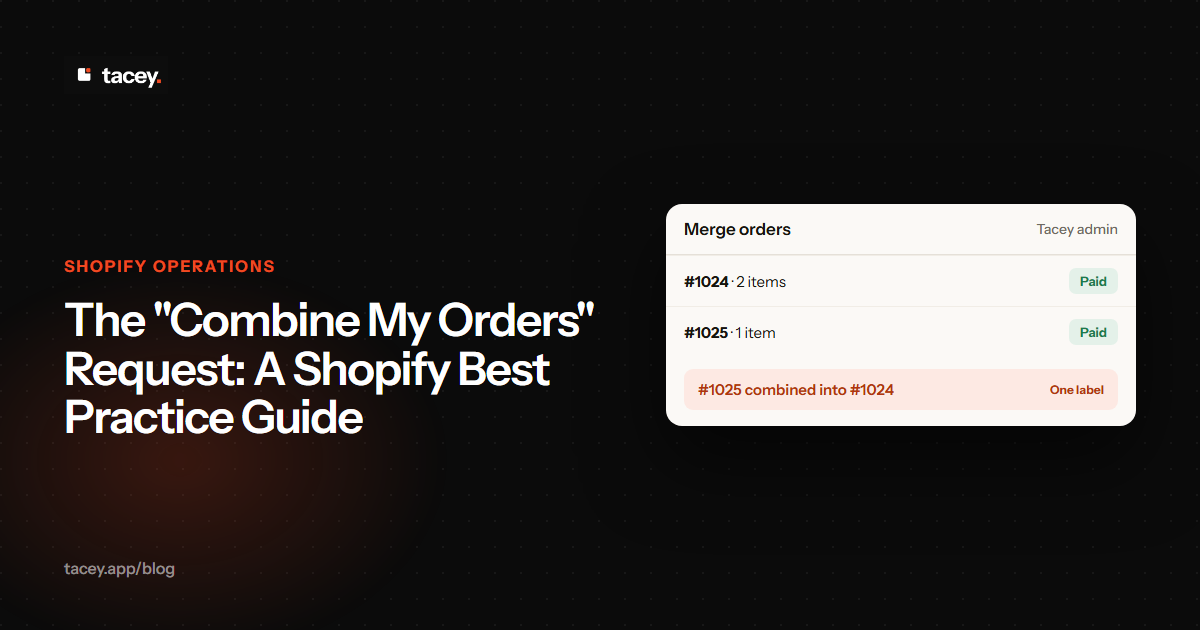
Our approach to this problem is a feature within the Tacey app. Unlike customer-facing edits, order merging is an action you, the merchant, take within the Tacey admin. You can select two paid orders from the same customer and combine them into a single shipment. The second order is canceled without a refund for its items (since the items are now part of the first order), and its items are added to the primary order at no new charge.
The process is designed for clarity and control. Within the Tacey admin, the app presents pairs of eligible orders from the same customer, allowing you to review and confirm the merge with a click. This prevents accidental combinations and gives you the final say, ensuring the action aligns with your current fulfillment status and any special circumstances related to the orders.
This process keeps the original payments intact and ensures your sales reporting remains accurate. Because it is a merchant tool, it provides full control over which orders get combined, preventing any automated errors. By moving line items instead of creating complex draft orders, it ensures that your product sales data remains clean and reliable for inventory forecasting. You can learn more about how it works on our Order Merge page.
Your customer doesn't see orders and shipments the way you do. They see one purchase decision. Combining their packages honors that perspective and shows you're running a thoughtful operation.
How Do You Handle Shipping Costs and Refunds?
Refunding the extra shipping charge is a key part of the customer experience. After combining the packages, determine the difference between what the customer paid across all orders and the cost of the single shipment. You can then issue a partial refund for that amount.
In your Shopify admin, open the order you are refunding from (typically the second or "absorbed" order). Click the "Refund" button, and in the "Refund shipping" field, enter the amount you want to return. Ensure all product quantities are set to 0 to avoid restocking items or refunding the product cost. This small gesture builds significant goodwill.
Be careful on the refund screen. It is easy to accidentally refund the product's cost instead of just the shipping fee. If you refund the item, Shopify may restock it in your inventory, creating a discrepancy. Double-check that all product quantities are set to zero before you confirm the refund. This prevents a simple shipping refund from becoming a complex inventory problem.
The Trade-off: Refunding vs. Store Credit
While a direct refund is cleanest, some merchants consider offering the refund as store credit. The upside is that the money stays within your business, encouraging a future purchase. This can be a good option if your margins are tight or if you want to drive repeat business explicitly.
However, this adds friction for the customer. They asked for a simple combination to save on shipping; receiving a store credit they now have to remember to use is not the same as getting cash back. For a small amount, the goodwill generated by a direct, no-strings-attached refund often provides a far greater return.
Your Standard Operating Procedure (SOP) for Combining Orders
A documented process prevents mistakes. Create a simple SOP for your customer service and fulfillment teams to follow whenever a "combine my orders" request arrives. This ensures consistency and accuracy, especially during busy periods.
- Criteria: Define what makes orders eligible. Orders must be for the same customer and shipping address, be entirely unfulfilled, and placed within a set time, such as a 4-hour window. This window should be shorter than your typical time-to-fulfillment.
- Action: Detail the step-by-step process, whether manual or using an app like Tacey. Specify that the oldest order should always become the primary one to maintain chronological sense in your records and reporting.
- Fulfillment: Clarify how to copy the tracking number to all associated orders. Emphasize that this step is critical for preventing "where is my order?" (WISMO) tickets, as a customer might otherwise see one order as shipped and the other as unfulfilled.
- Refunds: State your policy on refunding shipping. Decide whether you will refund the full second shipping charge or the precise difference in actual cost. Refunding the full amount is simpler to calculate and often feels more generous to the customer.
- Communication: Provide a template for replying to the customer. A simple, clear message confirming the combination and the refund amount manages expectations and closes the loop professionally. For example: "We've combined orders #1001 and #1002 and have refunded the extra shipping fee."
Without a clear SOP, your team faces decision fatigue. Each request becomes a new puzzle, consuming time and mental energy that could be spent on higher-value tasks. This inconsistency also leads to different customer experiences. One agent might combine orders, while another might not, creating confusion and the perception of arbitrary rules.
A clear process for combining orders is a small but powerful way to streamline your fulfillment and improve the customer experience. It turns a potential complication into a moment of excellent service, reducing shipping costs and encouraging repeat business. The key is to establish a reliable workflow that your team can execute consistently, ensuring that both your inventory and your customer records remain accurate.
Frequently asked questions
Can Shopify combine orders automatically?
No, Shopify does not have a built-in feature to automatically merge orders. This functionality requires either a manual workaround or a third-party app from the Shopify App Store that can identify and combine orders based on rules you set.
Does combining orders affect my inventory?
If done correctly, no. When done manually, the items were already deducted from inventory when purchased. Most order merging apps are designed to preserve accurate inventory by moving line items from a canceled order to the primary one, ensuring sales data for each SKU remains correct.
What happens to the original orders when I merge them?
Typically, one order is designated as the primary order, and the other is canceled and its items are added to the primary one. No refund is issued for the canceled order's items (the customer is still receiving the goods), and its payment is preserved. Duplicate shipping is the exception, covered in the shipping and refunds section above. This keeps your financial reporting accurate.
What if the orders have different discount codes?
This is a common edge case where manual merging becomes tricky. Applying two different order-level discounts to a single merged order is often not possible in Shopify. This is a strong reason to use a dedicated merging app, which can often preserve item-specific discounts while consolidating the orders.
Is it okay to not offer combined shipping?
Yes, it is acceptable to have a policy against combining orders, especially if your fulfillment process is too fast to allow for manual changes. The key is to state this policy clearly in your FAQ or shipping information page to manage customer expectations upfront. This prevents disappointment and reduces support requests.
How do I prevent customers from needing to combine orders?
While you can't eliminate the behavior entirely, you can reduce it. Using a "free shipping" progress bar in the cart can encourage customers to add everything at once. Additionally, Tacey's upsells let a customer add items to their existing order from the thank you or order status page while the edit window is open, which can remove the need for a second order.
 Install on Shopify