 tacey
tacey Install on Shopify
A customer places an order, then realizes they chose the wrong size or typed their address incorrectly. The support ticket that follows is a familiar story for every Shopify merchant. It’s a manual, time-consuming process that slows down fulfillment and risks a frustrating customer experience. What if the customer could fix it themselves?
While Shopify's platform is powerful, it does not natively allow customers to modify or cancel their own orders after payment. Once an order is placed, any change requires direct contact with your support team. This guide explains how to bridge that gap with third-party apps, creating a self-service system that saves you time and keeps customers happy.
Why can't customers edit their own Shopify orders by default?
Shopify's order management system is designed for security and record-keeping accuracy from the merchant's perspective. Once an order is created and paid for, it becomes a fixed record. The platform allows merchants to edit unfulfilled orders from the admin, but this capability is not exposed to the customer.
Think of an order not just as a shopping list, but as a sealed financial document. Once payment is authorized, it becomes a fixed record for accounting, tax, and fraud prevention systems. Allowing unrestricted changes would be like letting someone alter a signed check. It complicates everything from payment gateway reports to your end-of-year bookkeeping, creating data integrity issues.
This is a deliberate design choice. Allowing direct customer edits without a controlled system could create chaos with inventory, fulfillment workflows, and payment records. Imagine a customer changing their order after the shipping label is printed or after the item has already left the warehouse. To prevent this, Shopify locks the order from the customer's side.
Consider the payment chaos. If a customer swaps a $40 t-shirt for a $70 hoodie, how do you securely collect the extra $30? This requires a new transaction, which Shopify’s default order confirmation page isn't built to handle. It would need to re-invoice the customer, creating a clunky, multi-step process that can lead to confusion and abandoned sales.
The only native action a customer can take is to contact you. This creates a bottleneck, turning simple fixes into support conversations. Every "wrong address" or "can I change the color?" email is a manual task for your team, pulling them away from more complex issues.
What are the benefits of allowing order modifications?
Enabling customer self-service for order edits isn't just about convenience; it has a direct impact on your operations and bottom line. The primary benefit is a significant reduction in support tickets related to simple order mistakes. Instead of emailing back and forth, customers resolve the issue themselves in seconds.
This improves customer satisfaction by giving them immediate control. They don't have to wait for a support agent to become available. This autonomy can turn a moment of frustration into a positive brand experience. It empowers the shopper and shows that you trust them.
Furthermore, offering an edit option can prevent outright cancellations. According to a data analysis by Cleverific, over 80% of order cancellations are immediately replaced with a new order by the same customer, often to correct a mistake. By allowing an edit, you capture that sale without the friction of a refund and re-purchase, which also keeps your sales data cleaner.
A Worked Example: The Cost of a Simple Mistake
Consider the cumulative cost of manual edits. Each ticket, even for a simple address correction or size swap, requires a support agent to stop their work, find the order, communicate with the customer, and make the change. These small blocks of time, multiplied across dozens or hundreds of orders each month, add up to a substantial operational cost and a drain on your support team's capacity.
A self-service solution automates the majority of these requests, freeing your support staff from repetitive data entry. This allows them to focus on complex customer issues that genuinely require a human touch. The time saved directly translates into increased productivity and a more efficient support operation, often far outweighing the monthly cost of the app.
The benefits extend to your warehouse floor. When an address change is communicated via a hurried email or a Slack message, mistakes happen. A self-service app updates the order directly in the system. This means your fulfillment team always sees the most current, accurate information, reducing the costly errors of mis-delivered packages and shipping the wrong items.
What is the ideal window for order edits?
The ideal window for customer order edits is the time between payment and the start of your fulfillment process, which for most stores is between one and four hours. This window should close before your warehouse team picks the order or it is sent to a logistics partner.
If you fulfill orders once a day at 11 AM, your edit window could be from the previous day's cutoff until 10:30 AM. If you use an automated fulfillment service that pulls orders every hour, your window might be just 30 minutes. You must align the cutoff time with your specific operational schedule.
Setting a window that is too long increases the risk of edits colliding with fulfillment. An order that is modified after a shipping label has been purchased is a common and costly problem. The goal is to find a balance that gives customers enough time to catch mistakes without disrupting your shipping workflow.
Edge Case: Pre-Orders and Custom Products
The standard 'one to four hour' rule breaks for certain business models. If you sell custom-made furniture or run pre-order campaigns, your fulfillment process might not start for weeks. In these cases, the edit window can, and should, be much longer. The principle remains the same: the window closes when the order enters a non-reversible production or fulfillment stage.
The 'Edit Collision' Trade-Off
An 'edit collision' is the ultimate risk. This happens when a customer submits an edit at the exact moment a warehouse employee is picking the order. Without proper safeguards, the original item gets shipped, but the system shows the edited item. This results in an angry customer, a lost item, and the cost of re-shipping the correct product.
Order editing apps designed to handle this risk prevent collisions using system-level locks. When an edit is initiated, the app places a temporary hold on the order via Shopify's API, making it invisible to the fulfillment system. Once the edit is complete, the hold is released. This brief pause helps prevent your warehouse team from acting on data that is seconds away from being outdated.
How do I set up customer order editing on my store?
Since this isn't a native Shopify feature, the solution lies in the Shopify App Store. Specialized order editing apps integrate with your store to create a controlled environment where customers can make changes. They work by adding a link or button to the post-purchase order status page.
Here’s the typical process for setting this up:
- Choose an Order Editing App: Research and select an app that fits your needs and budget. Look for features like address editing, variant swaps, item additions, and order cancellation.
- Configure the Editing Window: In the app's settings, define the time limit for customer edits. As discussed, this should be based on your fulfillment schedule to prevent conflicts.
- Define What Customers Can Change: Decide which actions are permissible. You might allow address corrections but not item removals, or you could enable everything. Good apps give you granular control over these permissions.
- Customize the Customer Interface: Most apps allow you to customize the look and feel of the edit page to match your brand. This ensures a consistent experience for the customer.
- Inform Your Customers: Add a small note to your order confirmation email or on the order status page letting customers know they have a short window to make changes themselves. This proactive communication can further reduce support requests.
When defining what customers can change, you face a trade-off between power and complexity. Allowing customers to add items to their order is a fantastic way to increase average order value. However, it requires the app to securely handle additional payments. Disabling this keeps things simple but leaves money on the table. Think carefully about what your backend systems can handle.
To make your new self-service system effective, you must tell customers it exists. Add a clear, simple message to your order confirmation email. For example: "Mistake in your order? No problem. You have 60 minutes to edit the address or swap sizes directly from your order status page." This small piece of communication sets expectations and guides customers to the solution.
What are the best Shopify apps for order editing?
Several well-regarded apps provide this functionality, each with different features and pricing. Your choice depends on your store's volume and the specific edits you want to enable. It is important to evaluate each based on your needs for either customer-facing or staff-side edits, as some are built for complex changes while others focus on self-service. The table below compares some popular options.
| App | Key Feature | Best For | Starting Price |
|---|---|---|---|
| Cleverific Order Editing | Powerful staff-side editing and customer self-service. | Stores needing robust tools for both their team and customers. | $59/month |
| Revize Order Editing | Customer self-editing with a Built for Shopify badge. | Merchants wanting a modern, customer-focused editing experience. | Free plan available |
| AE: Order Editing & Upsell | Customer-facing edits with a focus on cutting support tickets. | Stores focused on reducing cancellations and simple edits. | $39/month |
| Tacey | Self-service on the order status page plus address validation. | Merchants wanting an all-in-one post-purchase toolkit. | $29/month |
How does Tacey enable customer self-service?
Tacey provides a complete toolkit for post-purchase adjustments directly on the order status page Shopify already sends to your customers. It operates within the critical pre-fulfillment window, allowing shoppers to solve their own problems without ever creating a support ticket. This approach respects your fulfillment workflow while empowering your customers.
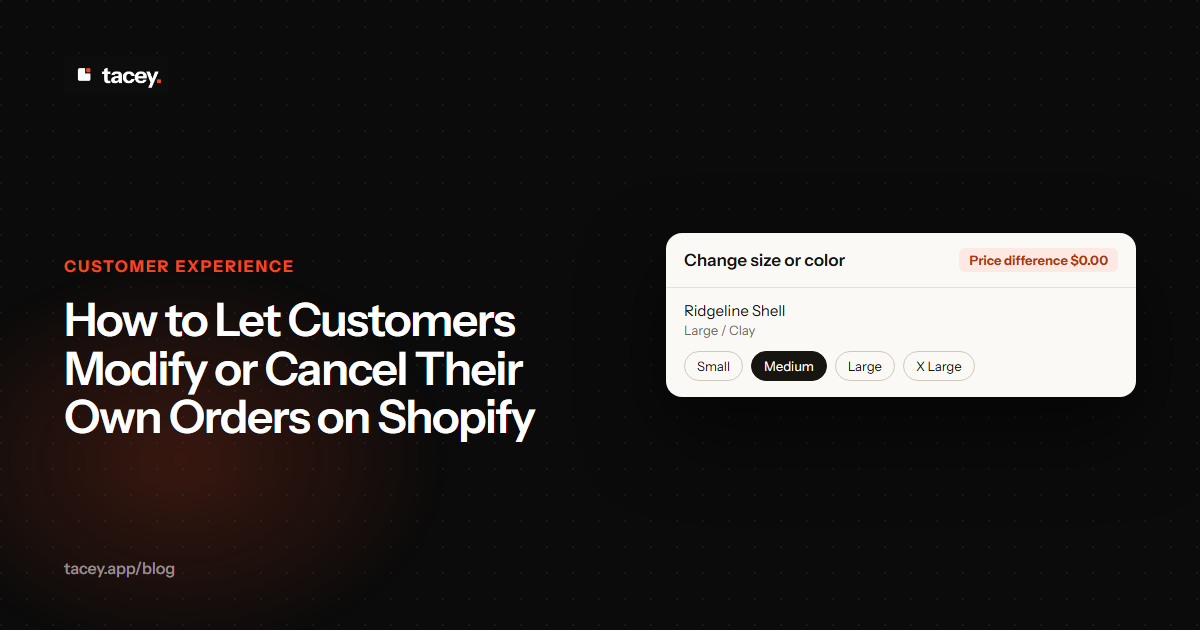
After installing Tacey, you configure which edits a customer can make. Options include editing the shipping address, changing product variants like size or color, updating quantities, or canceling the order entirely. Every action happens on the familiar Shopify order page, requiring no separate login or confusing portal.
The goal is to give the customer control in the moments after they pay, when they are most likely to spot a mistake. This turns a potential problem into a quick fix, which builds trust and reduces the operational load on the merchant.
Tacey’s automated address validation is a key preventative tool. It checks shipping addresses against professional address data right after an order is placed. Every checked order is tagged in the Shopify admin for filtering, while customers are prompted to review and correct any details that appear questionable, like a missing apartment number. This process helps reduce failed deliveries and their associated reshipment costs.
While most of Tacey's tools are for customer self-service, it also includes features for merchants that handle the fallout from order mistakes. One example is a tool that addresses when a customer places a second, correct order right after a mistaken one.
Instead of handling two separate orders and a cancellation request, the merchant can merge them from Tacey's admin. This combines them into a single shipment, keeping customer records clean and sales data accurate without manual reconciliation.
The system is built for safety. The edit window you set automatically closes once your fulfillment process starts, preventing an order from being changed after it has been sent to the warehouse. Tacey also includes automated address validation and allows merchants to merge duplicate orders.
Together, these tools create a more efficient post-purchase workflow. All plans include a 14-day free trial, with paid plans starting at $29/month. You can learn more about the features on the order editing page.
What happens when a customer cancels an order?
When a customer uses a self-service app to cancel, the order is voided in Shopify and a full refund is automatically processed to the original payment method. The order’s status is then updated to "Canceled" in your order history, and the items are restocked, automating the entire process.
This automated process is a significant time-saver. It eliminates the need for you to manually look up the order, click cancel, confirm the refund, and restock the items. The app handles these steps based on the rules you've set. Many apps also allow you to prompt the customer for a cancellation reason.
This data can be invaluable. If you see a pattern of customers canceling to apply a discount code they forgot, you might reconsider where you display coupon fields. If they are canceling to change a size, it highlights the need for a better size guide or a clear order editing function.
The Hidden Cost of Cancellations
Remember that Shopify does not refund the original credit card processing fees. On a $150 order, the non-refundable fee is typically around 2.9% + $0.30, which is $4.65. If a customer cancels, you refund the full $150, but you are still out that $4.65. It's a direct, out-of-pocket loss for your business on every single cancellation.
This hidden cost creates a powerful financial incentive to offer order editing as an alternative. If a customer can fix their mistake instead of canceling, you save the sale and avoid the fee. Multiplying that small loss across hundreds of cancellations per year reveals a significant and completely avoidable drain on your profits. An editing feature pays for itself by preventing these losses.
Ultimately, giving customers the power to manage their own orders is about building a more resilient and efficient business. It reduces the burden on your support team, allowing them to focus on high-value interactions. By implementing a clear, app-based system for modifications and cancellations, you can improve the customer experience and streamline your post-purchase operations.
Frequently asked questions
Can a customer change their shipping address after ordering on Shopify?
Not by default. Customers must contact the merchant to request a change. However, third-party apps like Tacey can be installed to allow customers to edit their own shipping address for a limited time on the order status page.
Does Shopify charge for canceling an order?
Shopify does not charge a fee for canceling an order. However, the credit card processing fees from the original transaction are typically not refunded to the merchant. This means you lose that small amount on canceled orders.
How long do customers have to cancel a Shopify order?
Without an app, customers have no set window and must contact you to request a cancellation. With an app, the merchant defines the cancellation window, which should close before the order is sent for fulfillment.
Can I let customers add items to an existing Shopify order?
Yes, some order editing apps allow customers to add items to their order post-purchase. This can be a great way to increase average order value, especially when the customer is already engaged on their order status page.
Will canceling an order automatically restock my inventory?
When you cancel an order in the Shopify admin, you are given the option to restock the items. Most order editing apps that handle cancellations will also automate this restocking process according to your settings.
What is the difference between editing and canceling an order?
Editing modifies an existing order, such as changing a variant or quantity. Canceling terminates the order entirely and, if paid, processes a refund. Offering edits can often prevent the need for a full cancellation and re-order.
Can customers edit an order that has already been fulfilled?
No. Once an order is marked as fulfilled and has a tracking number, it cannot be edited by the customer or the merchant. Any changes, such as a return or exchange, must be handled through a separate post-delivery process.
 Install on Shopify