 tacey
tacey Install on Shopify
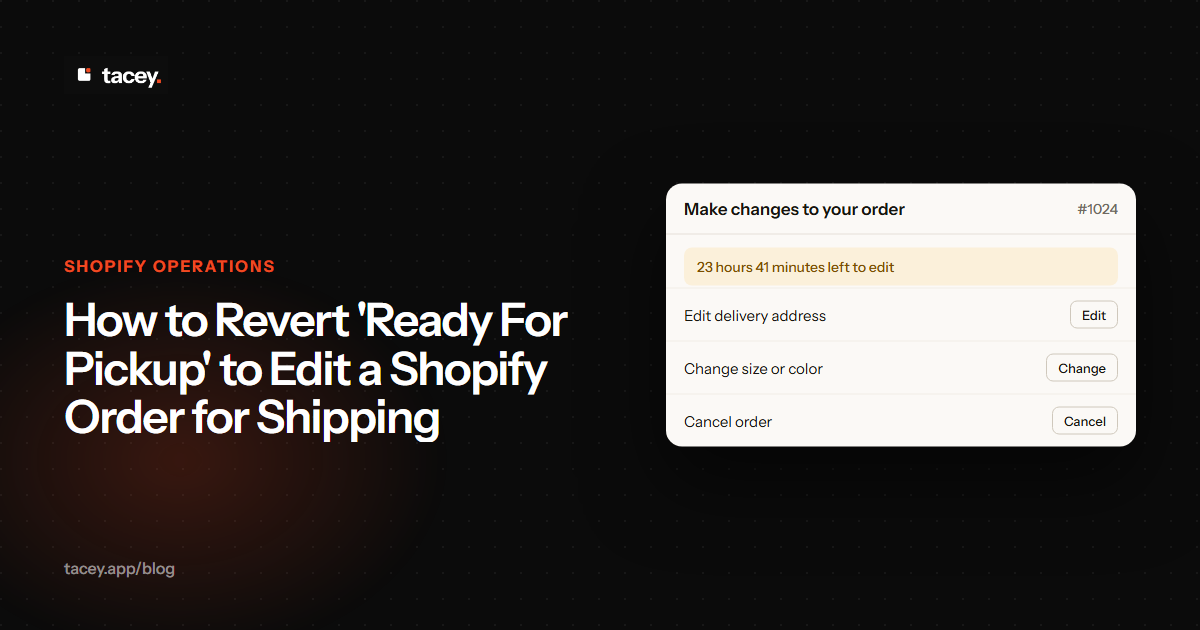
A customer selects "Local Pickup" at checkout, but then emails asking to have the order shipped instead. You go to the order in your Shopify admin, but the shipping fields are locked. The order is marked as 'Ready for pickup', and suddenly a simple change becomes a frustrating dead end. This scenario is a common operational snag for stores offering both shipping and pickup.
This isn't a bug; it's a feature of how Shopify separates fulfillment workflows. Once an order is designated for pickup and prepared, the system considers it on a different track than a shipped order. Reverting it requires a specific, but hidden, series of clicks. This article walks you through that exact process.
Why does 'Ready for Pickup' lock an order from shipping edits?
An order marked 'Ready for Pickup' is locked because Shopify treats it as a distinct fulfillment type. The system assumes the next step is the customer's arrival, not a courier's. This status change effectively removes the order from the standard shipping queue and its associated options, like adding or editing a shipping address and label.
Shopify manages orders through a series of states, like a machine that can only be in one mode at a time. 'Unfulfilled' is one state; 'Ready for pickup' is another. Moving between these states follows strict rules, and not all transitions are possible. This rigid structure ensures order data remains consistent and predictable for your entire system.
This separation is also crucial for accurate reporting. Your fulfillment analytics might track how many orders are shipped versus picked up. If the system allowed them to mix, it would corrupt this data. This would make it harder to plan staffing for your pickup counter or negotiate better rates with your shipping carriers.
The lock also serves as a guardrail for your team. It prevents a warehouse worker from accidentally shipping an order that a local customer is already on their way to collect. In a busy operation, these built-in stops prevent costly fulfillment errors and customer frustration. The lock is a feature that protects your workflow integrity.
When you mark an order as ready for pickup, Shopify sends a specific notification to the customer and moves the order into a state awaiting in-person collection. The platform's logic is that an order at this stage shouldn't need a shipping address. This is why the standard 'Edit' functions for shipping details appear to be disabled, causing confusion for many merchants.
The key is understanding that you're not trying to edit a pickup order; you're trying to convert it back into a shippable order. The process involves telling Shopify to change the fulfillment method itself, which then unlocks the familiar shipping management tools you need to use.
How to revert a Shopify order from 'Ready for Pickup' to 'Unfulfilled'
Reverting an order from 'Ready for Pickup' back to a standard unfulfilled state is the crucial step to enabling shipping edits. This action changes the fulfillment method from local pickup back to shipping. The option is available, but it is not immediately obvious in the order details screen. Here is the direct path to find it.
Before you make this change, it is wise to communicate with the customer. Confirm they have provided a full shipping address and have agreed to pay any associated shipping fee. This avoids doing the work only to have the customer change their mind again when they see the invoice for the new shipping cost.
Follow these steps to make the change:
- From your Shopify admin, navigate to the Orders section.
- Click on the specific order number that is currently marked 'Ready for pickup'.
- In the Unfulfilled section of the order page, locate the items pending fulfillment.
- Click the … (More actions) button next to the fulfillment status.
- From the dropdown menu, select Change to shipping.
This action immediately reverts the order's status. The 'Ready for pickup' tag will disappear, and the order will now be treated as a standard online order that needs a shipping address and fulfillment. The shipping address fields, previously grayed out, will become editable again.
If the "Change to shipping" option is missing, you may have an edge case. This can happen with complex orders, such as those with split fulfillments or items managed by different apps. In this rare situation, your only option may be to cancel and refund the order, then create a new draft order for the customer.
What do I do after reverting the order to shipping?
Once you've successfully reverted the order, it's essentially a blank slate for shipping. The original pickup selection means there is no shipping address attached to the order. You will need to manually add the customer's address and then proceed with your normal fulfillment process, including assigning a shipping rate if necessary.
First, add the customer's delivery address. On the order page, find the 'Shipping address' section and click 'Edit'. You can then enter the address details your customer provided. This step is critical; without an address, you cannot purchase a shipping label or fulfill the order correctly.
The risk of manual address entry
The biggest risk at this stage is a simple typo. When you copy the address from a customer's email, it is easy to make a mistake. An incorrect house number or zip code will lead to a failed delivery. This creates a poor customer experience for the buyer and introduces avoidable costs for your business.
A returned package is expensive. You lose the original postage you paid, and you may have to pay a return fee to the carrier. Then you must pay for shipping a second time to the corrected address. A simple typo on a $10 shipment can quickly turn into a $20+ loss, wiping out the profit on the order.
To avoid this, always copy and paste the address directly from the customer's message. Do not re-type it. Before buying the label, use a free tool like Google Maps to check that the address appears valid. Shopify's own address validation will catch some errors, but a manual check provides an extra layer of security.
After adding the address, the order is ready for your standard fulfillment workflow. You can create a shipping label through Shopify Shipping or send the order details to your third-party logistics (3PL) partner. The order now behaves identically to any other order that was placed with a shipping option from the start.
How can I charge for shipping on a converted pickup order?
Charging for shipping after the original order was paid for creates a small complication. Since the customer chose free local pickup, no shipping fee was collected. After reverting the order to shipping, you cannot simply add a shipping cost to the existing, paid order. You need to create a separate transaction to collect the shipping fee.
The cleanest method is to create a draft order for the shipping cost. Go to 'Draft Orders', create a new order, and add a custom line item named "Shipping Fee for Order #[Original Order Number]". Set the price to your calculated shipping rate and ensure you mark it as not requiring shipping itself.
Worked Example: Invoicing for Shipping
Let's say a customer bought a $45 hoodie. They chose free local pickup, so they paid exactly $45 plus tax. Later, they email you asking to have it shipped. Your standard shipping rate for this item's weight and their location is $9.75. You cannot add this to the paid order directly.
You navigate to Draft Orders and create a new one. You add a custom line item, not a product from your inventory. Name it "Shipping Fee for Order #1054" to link it clearly. You then set the price for this custom item to exactly $9.75, matching the rate you quoted to the customer.
Crucially, you must ensure this new line item is not taxable and does not require shipping itself. Otherwise, the system might try to charge tax on the shipping fee or ask for a shipping method for the shipping fee. You are simply creating a bill for a service, not sending a physical product.
You then use the "Send invoice" function to email a checkout link to the customer. They click the link, enter their payment details, and pay the $9.75. You now have two paid orders in your system related to this one customer transaction. You can now fulfill the original order, #1054.
The "Transaction Purity" Trade-Off
Using a draft order is fast and keeps the original order intact. This is great for customer convenience. The trade-off is that your sales data is now slightly more complex. You have two separate transactions for what was essentially one sale, which can complicate reporting if you are not careful to account for it.
The alternative is to cancel the original order, refund the customer, and create a new single draft order with the hoodie and the shipping fee included. This keeps your transaction data clean but is a much worse customer experience. It forces them to wait for a refund and go through checkout again, risking the sale.
Can this process be automated for all pickup orders?
There is no native Shopify feature to automatically revert pickup orders. However, the Shopify App Store offers tools designed to streamline this workflow. Apps might allow merchants to set rules for when an order is marked as ready, which can help manage the process more efficiently, though it doesn't directly solve the reversion issue.
True automation is difficult because the situation requires human judgment. An automated system cannot know if the customer is willing to pay for shipping. It also cannot verify if their requested shipping address is in a region your business serves without complex, pre-defined rules that cover every possible scenario.
Trying to build a Shopify Flow for this could create a brittle system. If a customer's request is slightly unusual, the automation could fail or, worse, do the wrong thing. A smooth manual process for exceptions is often more robust than a fragile, fully automated one that breaks on edge cases.
For the reversion itself, the manual "Change to shipping" method remains the primary solution. The problem is not one of automation but of exception handling. The goal is to reduce the number of times a customer mistakenly chooses pickup. Clear instructions during checkout and on the order confirmation page can help prevent the error in the first place.
Instead of just a line of text, some themes allow you to add a required checkbox to the cart. Before the "Local Pickup" option becomes selectable, the customer must check a box that says, "I confirm I can collect this order from your Anytown, USA location." This active confirmation step can dramatically reduce mistakes.
An order isn't final the moment it's paid. It's final the moment it's packed. The space in between is where you build customer loyalty or create a support ticket.
What are the limitations of editing in-store pickup orders?
Shopify has specific rules around editing in-store pickup orders, even before you mark them as ready. According to Shopify's documentation, you can edit these orders, but certain actions are restricted compared to standard shippable orders. These limitations are in place to prevent conflicts with inventory and the pickup process.
Consider an edge case: the item ordered for pickup is a store-exclusive product. The inventory for that item exists only at the retail location and not in your main shipping warehouse. The customer's request to ship it is now logistically impossible through your standard fulfillment process, forcing a cancellation.
When a pickup order is placed, a retail employee often pulls that item from the sales floor. They may package it and place it on a holding shelf. If that order is then reverted to shipping, that work is wasted. The item must be un-packaged and returned to sellable stock, consuming valuable staff time.
This creates small but meaningful operational costs and internal friction. The time spent processing the item for pickup and then reversing that action is unrecoverable labor. This is why clear communication and preventing the error at checkout is always the most efficient solution for the business as a whole.
For instance, while you can add items or adjust quantities, you cannot change the pickup location on an existing order. If a customer wants to pick up from a different store, the official guidance is to cancel and refund the original order, then have the customer place a new one with the correct location. This maintains accurate inventory records for each location.
These constraints highlight why converting the order to a shipping order is often the most flexible solution when a customer changes their mind. It moves the transaction out of the more restrictive pickup workflow and into the more adaptable shipping one, giving you full control over address and fulfillment details.
How can a customer edit their own delivery method?
Preventing these issues is better than fixing them. A primary cause of this problem is a simple customer mistake during checkout. Giving customers a brief window to correct their own errors post-purchase can eliminate the entire manual workflow described above. This is where a customer-led order editing solution becomes valuable.
This happens on the order status page, the same page Shopify emails to every customer after a purchase. With the right tool, a customer who realizes they selected pickup by mistake can submit a cancellation request themselves and, once it's processed, place a new order correctly. This all happens before your fulfillment team ever sees the order.
Tacey provides this capability, allowing merchants to set a specific time window, such as one hour, during which customers can self-serve edit their orders. The window closes automatically before the order is sent for fulfillment, so it never interferes with warehouse operations. This narrows the window for costly mistakes without adding work for your team.
Frequently asked questions
Can I change a shipping order to a pickup order?
Yes, the process is similar. On an unfulfilled shipping order, you can click the 'More actions' menu and select 'Change to pickup'. This will convert the order to the local pickup workflow.
Will reverting the order notify the customer?
No, clicking "Change to shipping" is an internal admin action. It does not send a new notification to the customer. You will need to communicate with them separately regarding the shipping address and any potential costs.
What if the customer paid with an accelerated payment method?
The payment method does not affect this process. The order has already been paid and confirmed by Shopify. The change from pickup to shipping is a fulfillment-level adjustment and does not touch the original payment transaction.
Does this work for orders placed through Shopify POS?
Yes, the workflow is consistent. You can edit in-store pickup orders from the Shopify admin regardless of where the order originated, and reverting the order to shipping follows the same steps.
Why was the 'Ready for pickup' status applied automatically?
Some apps or fulfillment settings might automatically change an order's status. Review your installed apps and Shopify Flow automations to see if any rules are in place that might be marking pickup orders as ready before your team has physically prepared them.
Can I edit the 'Ready for Pickup' email notification?
Yes, you can customize this notification. From your Shopify admin, go to Settings > Shipping and delivery. Under 'Pickup in store', click 'Manage' on the relevant location and you will find an option to edit the 'Ready for pickup' notification template.
Does this affect my inventory levels?
No, changing the fulfillment method from pickup to shipping does not alter the inventory commitment for the items in the order. The products were already reserved when the order was placed. This action only changes how the order will be delivered to the customer.
 Install on Shopify