 tacey
tacey Install on Shopify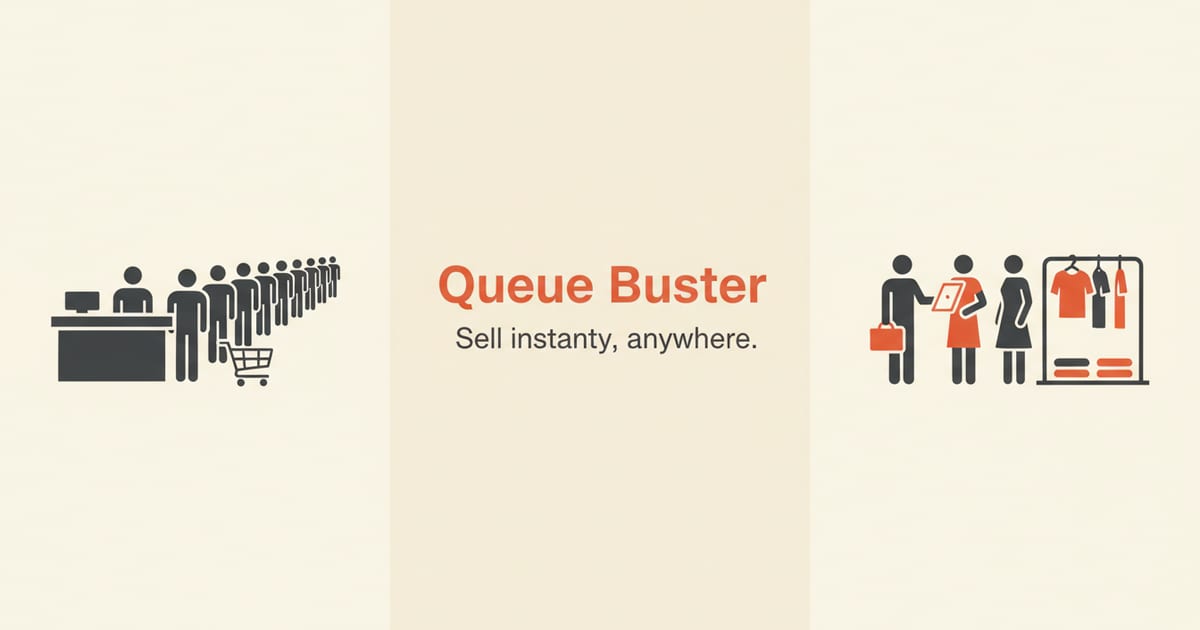
A customer is ready to buy, but your checkout counter has a line. On the other side of the store, another staff member is free. Until recently, that free staff member couldn't help close the sale. With a recent Shopify POS update, that bottleneck is less of a barrier. The new shared cart feature allows your team to work together on a single sale, from anywhere on the sales floor.
What Is the Shopify POS Shared Cart Feature?
Shopify POS shared carts allow retail staff to start building a customer's cart on one device and then access or complete it on another. This feature, rolled out in mid-2026, untethers the checkout process from a single counter and a specific staff member. It addresses a long-standing limitation where a cart was tied exclusively to the device that created it.
Before this, associates relied on clumsy workarounds. They might jot down SKUs on paper to re-enter at the register, or verbally relay a customer's order. These methods are slow and prone to error, introducing friction at the worst possible moment. Shared carts replace these manual steps with a seamless digital handoff.
This update transforms the checkout from a fixed station into a flexible service. It allows for multiple small payment points around the store, equipped with card readers and mobile devices. A main register can still exist for complex transactions, but simple purchases can be completed on the spot, wherever the customer is standing.
Any staff member logged into the same store location can pull up an active cart started by a colleague. This creates a fluid shopping experience where a customer can interact with multiple associates without starting their order over. The goal is to reduce wait times and make the in-store checkout process more flexible.
The feature works across different POS devices, meaning a cart started on an iPhone can be handed off to a staff member with a POS Go terminal. It centralizes the order-building process while decentralizing the point of payment. This allows your team to adapt to customer flow in real time.
Why Do Shared Carts Matter for Retail Stores?
Shared carts directly address the physical bottleneck of a fixed checkout counter, reducing friction at the point of sale. Long queues are a common reason for customers to abandon a purchase in-store, just as they do online. This feature allows your team to bring the checkout to the customer.
For high-touch retail environments like apparel or furniture showrooms, the sales process is often a conversation. A customer may work with one associate in fittings and another to discuss accessories. Shared carts prevent a clumsy handoff where the customer has to repeat their selections. The context of their order follows them through the store.
This capability also improves staff efficiency. During a busy period, one associate can focus on building carts for customers on the floor while another handles payments at the register. It turns a linear process into a parallel one, letting you serve more customers faster without adding staff.
From Checkout Line to Revenue Lost: A Worked Example
Imagine a busy Saturday with a five-person line at your single register. The average wait time is four minutes. Industry studies suggest that for every minute a customer waits, the chance of them abandoning their purchase increases significantly. If your average order value is $120, even one lost sale per hour is a major issue.
Over an eight-hour peak period, losing one $120 sale per hour equates to $960 in lost revenue for the day. If this pattern repeats every Saturday, you are losing nearly $50,000 a year from a single, solvable bottleneck. By using a shared cart to open a second "floating" checkout, you can cut wait times and capture that revenue.
Enabling Multi-Specialist Collaboration
Consider a large home goods store. A customer might work with a flooring specialist to choose a custom-sized rug. That specialist adds it to a cart on their tablet. The customer then moves to the lighting department, where another expert helps them find matching lamps. That lighting expert can load the same shared cart and add their items.
This creates a single, unified shopping journey guided by multiple experts. The customer benefits from specialized knowledge in each department without the hassle of tracking separate orders. When they are ready to pay, any associate can retrieve the complete cart and finalize the sale, providing a truly seamless, high-touch experience.
How Does Cart Sharing Work in Practice?
The workflow involves one staff member starting a cart, saving it, and another staff member loading it on a different device. The process requires all staff to be logged into the same Shopify POS location to see the list of active shared carts.
Here is the typical step-by-step flow for using a shared cart:
- Build the Cart: A sales associate adds items to a customer's cart on their POS device as they assist them on the sales floor.
- Save the Cart: Instead of proceeding to checkout, the associate taps an option to save the cart. This makes it available to other POS devices at that location.
- Load the Cart Elsewhere: A second associate, either at the main register or with another mobile POS, can then access a list of saved carts.
- Complete the Transaction: The second associate selects the correct customer's cart, loads it onto their device, and proceeds with payment as usual.
A crucial, concrete step is to attach a customer profile to the cart before saving it. While not technically required, naming the cart makes it far easier for the next associate to identify. A list of anonymous "Cart 1, Cart 2, Cart 3" creates confusion, whereas "Jane Doe's Cart" is clear and specific.
Putting It Together: A Real-World Scenario
Sarah, a floor associate at a boutique, is helping a customer named Michael. Using her Shopify POS Go, she adds a jacket and two shirts to his cart. As she does, she sees a line forming at the front register. She knows her manager, Ben, is free near the back of the store by a small payment terminal.
After adding Michael's customer profile, Sarah saves the cart. She tells Michael, "Ben can check you out right over there, so you don't have to wait in line." Ben, on his own POS device, opens the shared cart list, taps on "Michael's Cart," and confirms the items. The entire transaction is completed in under a minute.
Once a cart is loaded on a new device, it is removed from the shared list to prevent two associates from accidentally processing the same order. This simple locking mechanism ensures order accuracy during the handoff.
What Is Required to Use Shared POS Carts?
This feature is available exclusively for merchants using the Shopify POS Pro plan. The standard Shopify POS plan does not include cart sharing capabilities. Each staff member who needs to access or create shared carts must have a POS Pro seat assigned to their staff account.
The upgrade to POS Pro comes at a cost, typically $89 per month for each physical location. This subscription fee is in addition to your base Shopify plan. So, a merchant on the Basic Shopify plan with one store would see their monthly cost increase. This trade-off requires a clear-eyed look at the potential benefits.
Calculating the Return on Investment (ROI)
To justify the $89 monthly fee, a store must determine if the feature saves or generates more than it costs. Start by estimating the revenue lost to long checkout lines, as in the example above. If shared carts can save even three sales of $100 each month, the feature has already paid for itself.
Next, consider labor efficiency. If the feature allows you to handle a 20% higher volume of transactions during peak hours without adding staff, that is a direct productivity gain. Quantify the value of that extra throughput. The combination of saved sales and increased efficiency often makes the POS Pro investment profitable for busy stores.
Functionally, all devices must be logged into the same physical store location within your Shopify admin. A cart started at your "Downtown" location will not be visible to staff logged into the "Uptown" location. The feature is designed for collaboration within a single four-walled retail environment.
This location-specific constraint is an important edge case for pop-up shops or events. If you set up your weekend market stall as a different "Location" in Shopify for inventory purposes, staff there cannot access carts from your main brick-and-mortar store. This is a planning consideration you must account for ahead of time.
The feature is part of the core POS app, so no separate installation is required. As long as your store meets the plan and staff subscription requirements, the functionality will be present in your POS interface. It works on Shopify's hardware and the POS app for iOS and Android.
How Is This Different From Emailing a Cart?
Shared carts are for in-person sales only and should not be confused with the ability to email a cart to a customer. The shared cart feature keeps the entire transaction within the Shopify POS system, passing control from one staff member to another inside the store.
Emailing a cart is a different tool for a different problem: cart abandonment recovery. When a customer is in-store but not ready to buy, an associate can build a cart and email it to them. The customer receives a link to complete their purchase online at a later time. This bridges the gap between in-store browsing and online purchasing.
Strategically, the two features serve opposite goals. A shared cart is designed for immediacy, helping a high-intent customer buy *now*. It is about closing the sale efficiently. Emailing a cart is about extending the sales cycle, giving a lower-intent browser time to consider the purchase and converting them later online.
This also affects your analytics. A shared cart sale is always recorded as an in-store, POS transaction attributed to that location and the staff involved. A sale from an emailed cart is an online transaction. This can impact how you track sales performance, inventory turnover, and even staff commissions depending on your reporting setup.
In contrast, a shared cart is designed to be completed in the store, almost immediately. It solves the problem of checkout logistics, not customer indecision. You can read more about how Shopify handles cart data across sessions in our article on Shopify's persistent cart functionality.
Every moment of friction in a transaction is a reason for the customer to leave. The goal is to remove those moments, whether they happen online or on a busy sales floor.
What Problems Can Arise with Shared Carts?
The primary challenge with shared carts is operational, not technical. Without clear communication, staff can create confusion. For instance, if a customer's name isn't attached to the cart, an associate might pull up the wrong one, leading to an incorrect transaction.
The cost of such a mistake is not trivial. At best, it requires an apology and a time-consuming void and refund process, frustrating the customer. At worst, the customer walks away without buying anything, and their negative experience means they may never return. A single bad checkout can lose you a customer for life.
An edge case to plan for is when a customer wants to add another item after the cart has been handed off. The second associate must be trained to simply load the cart, add the new item, and then proceed. If they are not, they might panic and try to start over, defeating the purpose of the feature.
Managing "Ghost Carts" and Operational Clutter
A common operational snag is the "ghost cart." This happens when an associate saves a cart for a customer who then leaves the store without completing the purchase. The cart remains in the shared list, creating clutter and potential confusion. Too many old carts make it hard to find the active ones.
The solution is a clear end-of-day procedure. A manager or closing staff member should be responsible for reviewing the list of all saved carts. They can then delete any that are clearly abandoned from earlier in the day. This keeps the system clean and ready for the next morning.
Training becomes critical. Your team needs a consistent process for naming or identifying carts. They also need to understand that loading a cart on their device removes it from the shared pool. A brief moment of "Where did the cart go?" can slow down the very process you're trying to speed up.
Device connectivity is another potential point of failure. Because the feature relies on syncing between devices, a weak Wi-Fi signal could delay a cart from appearing in the shared list. This can create awkward pauses while a customer is waiting to pay, undermining the goal of a faster checkout.
How Can Stores Maximize the Benefit of Shared Carts?
The best way to leverage shared carts is to integrate them into your store's standard operating procedures. This starts with comprehensive staff training. Every associate should know how to start, save, and retrieve a cart, and when it is appropriate to do so.
Define clear workflows for your team. For example, establish that floor associates are responsible for building carts, while dedicated cashiers are responsible for retrieving them and processing payments during peak hours. This specialization can dramatically improve throughput.
This role-based workflow can be further defined. "Rovers" are staff members equipped with a mobile POS device whose primary job is to engage customers and build baskets. "Cashiers" are stationed at fixed or mobile payment points to finalize transactions. This assembly-line approach is highly effective during holiday rushes.
To truly unlock this feature's potential, you must invest in the right hardware. A single fixed terminal and one mobile device will not be enough. Equipping multiple floor associates with a Shopify POS Go or an iPad with the POS app is what enables a truly decentralized and fluid checkout experience.
Use the feature as a tool for clienteling. An associate can build a cart with a customer, save it, and then walk them to another part of the store to show them a final item. Another team member can then take over the payment, freeing the first associate to continue providing personalized service. For more ideas on improving your operations, you can browse the Tacey blog.
The original associate, now free, can also use that time to enrich the customer's profile. With the conversation fresh in their mind, they can add notes about preferences, sizes, or future needs. This turns a simple sales transaction into a valuable data-gathering opportunity for future marketing and personalization.
Frequently asked questions
Is the shared cart feature available on all Shopify plans?
No, the Shopify POS shared cart feature is only available to retailers on the Shopify POS Pro plan. The standard POS plan does not include this functionality.
Can a shared cart be accessed from a different store location?
No. Shared carts are only visible to staff who are logged into the same retail location in the Shopify POS app. A cart created in one store cannot be accessed by another.
Does this feature work if a POS device is offline?
The feature requires an active internet connection to sync saved carts between devices. While Shopify POS has some offline functionality, sharing a cart is not part of it. A device must be online to both save and load a shared cart.
What version of Shopify POS do I need for shared carts?
This feature was introduced in Shopify POS version 11.11, released in July 2026. Your POS apps must be updated to this version or newer to use the functionality.
Can a customer's online shopping cart be pulled up on POS?
No, this feature does not connect a customer's online cart with the in-store POS. The shared cart functionality is exclusively for carts created within the POS system by staff members during an in-person shopping session. Shopify does offer a separate feature for viewing a logged-in customer's online cart, but it's a different workflow.
What happens if two staff members try to load the same cart?
Once a staff member loads a shared cart onto their device, it is removed from the list of available carts. This prevents another associate from accessing it simultaneously and avoids duplicate orders.
 Install on Shopify