 tacey
 Install on Shopify

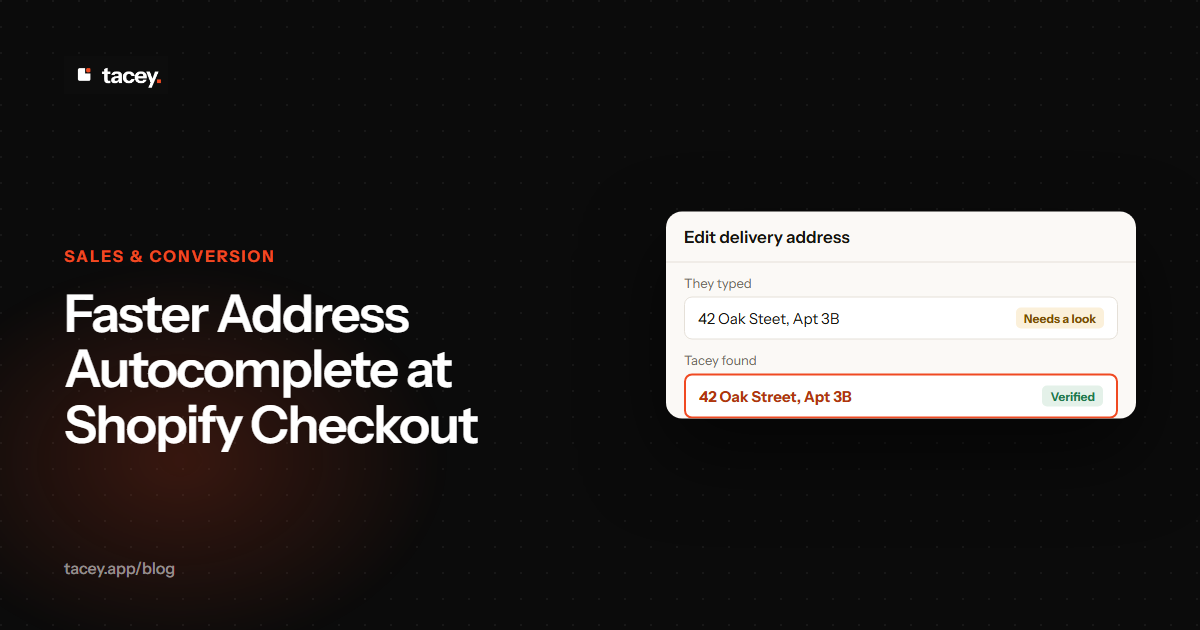
Shopify's address autocomplete feature is a small setting that makes a noticeable difference in your checkout flow. By suggesting verified addresses as a customer types, it reduces keystrokes and minimizes the kind of small typos that lead to failed deliveries. For merchants, it's a straightforward way to make buying easier and improve the quality of the address data you receive.
A single failed delivery can be surprisingly expensive. The most obvious cost is paying for shipping a second time, but the financial damage runs deeper. Each failed delivery often creates a customer support ticket, which consumes valuable team time. If the package is returned to sender, you may also face carrier fees, and in some cases, you may need to write off the cost of the products themselves.
Beyond the direct financial hit, there are intangible costs that can be even more damaging. A failed delivery is a frustrating experience for the customer, eroding the trust you have worked hard to build. When a promised item does not arrive, the purchase turns from an exciting moment into a chore of tracking packages and contacting support. This frustration can make a customer think twice before ordering again, turning a single shipping issue into a long-term revenue problem.
As part of a recent Shopify Editions update, the platform has rolled out a faster and more accurate version of this tool. It is a quiet improvement that can have an outsized impact on mobile conversion rates and operational efficiency by helping get the address right before the order is even placed.
What does address autocomplete do at Shopify checkout?
Address autocomplete suggests complete, verified postal addresses to customers in real-time as they fill out the shipping address form. When a shopper starts typing their street name, a dropdown appears with matching addresses, allowing them to select the correct one and automatically populate the remaining fields like city, state, and postal code.
The primary job of this feature is to reduce friction and errors during the most critical phase of a purchase. For the customer, it means less typing, which according to Shopify's testing can result in a checkout time savings of close to 20% on mobile devices. For the merchant, it means receiving address data that is more likely to be accurate and formatted correctly for shipping carriers.
On a small mobile keyboard, it is easy to mistype "Oak Lane" as "Oal Lane" or to transpose numbers in a postal code. Autocomplete minimizes these common errors by presenting a list of valid options. This reduces the cognitive load on the shopper, helping them move through the checkout process with more confidence and less frustration.
This functionality is built directly into Shopify and uses address data from reliable services to provide suggestions. It helps narrow the window for common mistakes like misspelled street names or incorrect postal codes, which are frequent causes of returned packages and customer support tickets. The suggestions are not just guesses; they are based on official postal data, increasing the likelihood of a successful delivery.
However, it is important to recognize the inherent trade-off. Checkout autocomplete prioritizes speed and convenience for the customer to maximize conversion. It is designed to be a helpful guide, not a strict enforcer of accuracy. A customer can still ignore the suggestions or choose the wrong one, which means it's a powerful first step, but not a complete solution for address accuracy.
Where does Shopify's address autocomplete work?
Shopify's enhanced address autocomplete feature is not available everywhere. The faster, more accurate system is primarily active for stores selling to customers in several key markets with high e-commerce volume and reliable national postal data, including North America, Australia, and parts of Europe.
This focus is likely driven by the availability of comprehensive address databases from services like the USPS or Canada Post. Access to this high-quality data allows Shopify to provide suggestions with a greater degree of speed and confidence, improving the user experience for a large segment of its merchant base and their customers.
For countries outside of this enhanced network, the checkout may offer a more basic form of address suggestion. This might be standard browser autofill or an older version of the autocomplete tool. While functional, it may not be as fast or precise, making post-purchase validation even more critical for international orders where the risk of a checkout error is higher.
How do you turn it on in checkout settings?
Enabling address autocomplete is a simple, code-free process in your Shopify admin. While it may be on by default in modern themes, it is always worth checking to be sure. You can follow a few simple steps to enable or verify the setting, and detailed guides can also walk you through the process.
Follow these steps to enable or verify the setting:
- From your Shopify admin, go to Settings > Checkout.
- In the Address collection preferences section, find the setting for address autocompletion.
- Select the checkbox labeled Use address autocompletion.
- Click Save to apply the change.
On some older themes, or if you have migrated your store from another platform, this setting might have been intentionally disabled. This was often done to avoid conflicts with custom scripts or older apps that also tried to manage address entry. Verifying that it is enabled ensures you are using Shopify's latest, most efficient tool.
For merchants on Shopify Plus, this native feature is particularly relevant as Shopify phases out checkout.liquid customizations. Previously, stores might have used custom code to integrate other services, but the built-in feature offers a reliable, no-maintenance alternative. Once saved, the feature is active in your checkout for supported countries at no additional cost, as it is part of the core platform.
What should you test after turning it on?
After enabling address autocomplete, it is crucial to test how it behaves for your customers. A feature that works in theory can have unexpected results in a live store, so testing from a customer's perspective ensures it functions as intended. The following plan covers the most important test cases you should run before assuming the feature is working perfectly.
- Test a valid address in a supported country: Add a product to your cart and proceed to checkout. Start typing a real address from a region like the US or Canada. Confirm that suggestions appear quickly and that selecting one correctly fills the other fields.
- Test an address in an unsupported country: Try entering an address from a country not on the enhanced list. This helps you understand what happens for your international customers. The experience may be different, but the checkout should still be fully functional.
- Test on both mobile and desktop: The value of autocomplete is often greatest on mobile. Run through the checkout process on your phone to confirm the feature is easy to use on a smaller screen and doesn't create any layout issues.
Deeper Test Cases for Edge Cases
Simple tests cover the basics, but delivery failures often come from edge cases. Go deeper to find potential breaking points before your customers do. Focus on addresses that are valid but tricky, as this is where automated systems can stumble and create downstream costs for your operations team.
- Addresses with unit numbers: Test an address for an apartment, suite, or unit. Does the autocomplete suggestion include the unit number, or does it only suggest the main building address? A missing apartment number is one of the most common reasons for a failed delivery.
- PO Box addresses: Try entering a PO Box. Confirm whether the autocomplete feature recognizes and suggests it correctly. Be aware that some shipping carriers cannot deliver to PO Boxes, so you need to know if your checkout is encouraging their use.
- Ambiguous street names: Test a common street name like "Main Street" that exists in several nearby towns. Does the tool correctly use the city or postal code to narrow the suggestions? Incorrectly assuming the town can send a package miles away from its intended destination.
- Military and diplomatic addresses: Try entering an APO, FPO, or DPO address. These have specific formatting rules that standard autocomplete systems can miss. Since they are handled by the military postal service, an error here almost guarantees a return, making it a critical edge case to test if you ship to service members.
The Compounding Cost of a Single Bad Address
To understand the financial impact, consider an order where the customer forgets to add their apartment number and the autocomplete suggestion they clicked did not include it. The initial cost is the product itself, but the financial damage quickly multiplies from there, turning a profitable sale into a loss.
First, the shipping fee you paid is wasted. The carrier marks the package as undeliverable and may charge an additional return-to-sender fee, meaning you have paid for shipping twice with no revenue. Then, the customer files a support ticket, which consumes paid staff time to investigate the issue, contact the customer, and update the order.
If you reship the item, you pay for shipping a third time. The total cost now includes the product, two-way shipping fees from the first attempt, the support agent's time, and the new shipping label. What was once a profitable order has now likely cost you more than the customer paid, entirely erasing your margin.
These checks help you confirm the feature is working and understand its boundaries. It also prepares you for any customer questions about the checkout experience in different regions.
A checkout tool helps the customer get it right, but a post-purchase check confirms they actually did. One prevents typos, the other prevents failed deliveries.
How is checkout autocomplete different from checking an address after the order is placed?
Checkout autocomplete and post-purchase address validation are two different tools that solve related but distinct problems. Autocomplete happens before payment to help the customer, while a post-purchase check happens after payment to protect the merchant. Understanding this distinction is key to a fulfillment process that is both efficient and resilient to error.
The Accuracy vs. Friction Trade-Off
The checkout page is the most sensitive part of your sales funnel. Every additional step, warning, or moment of hesitation increases the risk of cart abandonment. Shopify's autocomplete is designed with this trade-off in mind. It prioritizes a fast, frictionless experience to get the customer through the payment step successfully. It suggests, but it does not demand, a perfectly formatted address.
A post-purchase check operates after the sale is secured, shifting the priority from conversion to operational accuracy. Its job is not to make things easier for the customer, but to verify the address data before it reaches your warehouse and shipping carriers.
This separation of concerns allows you to optimize for both a low-friction checkout and a high-accuracy fulfillment process. You can secure the sale with a smooth experience, then use a separate step to confirm the details are correct before you commit to shipping costs.
Error Types Autocomplete Can't Fix
A checkout-time feature like Shopify's address autocomplete is designed to be a helpful suggestion. It makes data entry faster and reduces the chance of simple typos. However, a customer can still ignore the suggestions, override them, or submit an incomplete address to finish their purchase quickly. The primary goal at this stage is to reduce friction and secure the sale, not to enforce absolute accuracy.
Post-purchase validation excels at catching errors that autocomplete misses. For example, a customer might have an old address saved in their browser's autofill from before they moved. Autocomplete might "correct" the formatting of this old address, making it look valid, but it is still for the wrong house. A post-purchase check can sometimes flag this kind of move by noting the address has been inactive, something a checkout tool focused on speed cannot do.
Furthermore, autocomplete does not typically verify an address against its type. It cannot distinguish between a residential and a commercial address, which can lead to incorrect shipping rates or delivery attempts by carriers at the wrong time of day. Post-purchase validation services can often classify the address type, preventing these specific and costly errors.
In contrast, a post-purchase address check happens the moment an order is paid for, on the order status page. This process validates the final address against official postal databases. It is not a suggestion for the customer but a verification step for your operations.
If an address is flagged as risky or incomplete, the order can be tagged for review before it reaches your warehouse. This method catches errors that autocomplete might miss, without ever adding friction to the checkout process itself.
What to Do When an Address Is Flagged
When a post-purchase check flags a risky address, you have a clear path for action. The best practice is to have the tool automatically tag the order for review within Shopify. This tag serves as a signal for your fulfillment team to pause the order before it ships. Simultaneously, an automated email can alert the customer, providing a secure link to correct their details without needing to contact support.
Ultimately, the two systems work best together. Shopify's autocomplete provides a smoother front-end experience for your customers. A post-purchase tool like Tacey's address validation provides a critical back-end check for your operations.
This gives you a final opportunity to catch a mistake that slips through the checkout before you pay for a shipping label on a package destined to fail. To add this layer of protection, you can install Tacey from the Shopify App Store.
Frequently asked questions
Will address autocomplete slow down my checkout?
No, Shopify's native address autocomplete is optimized for performance and should not add any noticeable delay to your checkout loading time. The feature loads asynchronously and leverages Shopify's global infrastructure to deliver suggestions quickly. A post-purchase check has zero impact on checkout speed, as it runs entirely after payment is complete and the checkout page is already closed.
What if a customer uses autocomplete but still enters a wrong address?
This scenario highlights the limits of a checkout-time tool. A customer might live at 123 Main Street, Apartment 4B, but the autocomplete only suggests "123 Main Street." If they select that and forget to add their apartment number, the order's address becomes incomplete and likely undeliverable. A post-purchase validation check serves as a valuable safety net for catching these exact kinds of errors.
Is Shopify's address autocomplete free?
Yes, the address autocomplete feature is a built-in part of the Shopify platform and does not carry any additional fees. It is included for merchants on all Shopify plans as part of the core checkout experience for use in the supported countries. There are no extra charges from Shopify for enabling or using it.
Does address autocomplete work with express checkouts like Shop Pay?
When a customer uses an express checkout option like Shop Pay, Apple Pay, or PayPal, their address information is typically pulled from their saved profile within that service. In these cases, the manual address entry form is bypassed, so the autocomplete feature would not be used. However, a post-purchase validation tool still checks the address provided by the express checkout service, adding a layer of protection that would otherwise be missing.
Can I customize the address autocomplete suggestions?
Shopify's built-in autocomplete uses its own data and is not directly customizable by merchants. This is a deliberate choice to ensure a consistent, fast, and reliable experience across all stores on the platform. Allowing deep customization could introduce performance issues or bugs that would undermine the feature's core purpose. Developers on Shopify Plus can use Checkout UI Extensions to build more custom solutions if required.
 Install on Shopify