 tacey
 Install on Shopify

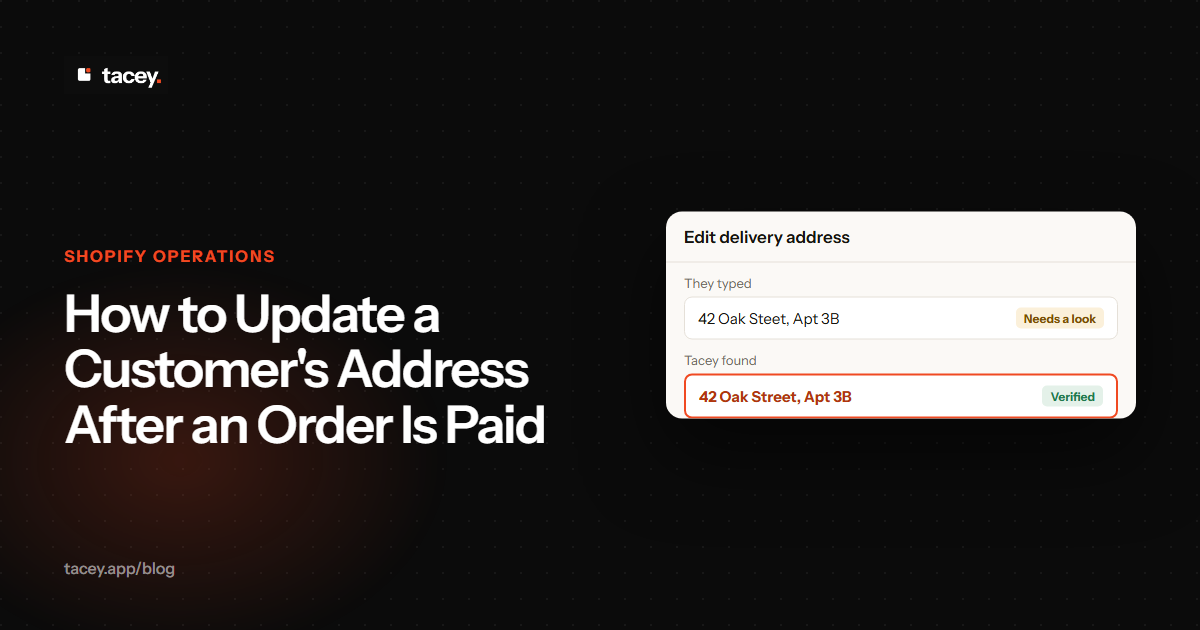
You can update a customer's shipping address on a paid, unfulfilled order directly within the Shopify admin. The process involves opening the specific order and editing the address in the customer section. A more effective strategy, however, is to use an app that lets customers correct their own mistakes on the order status page, reducing errors before they reach your fulfillment team.
Fixing an address in the Shopify admin is a necessary skill, but it's a reactive solution that consumes support time. A better approach reduces the number of these requests by allowing customers to correct their own mistakes within a safe time window, directly on the order status page they already have open.
What are the risks of a wrong shipping address?
A wrong shipping address creates costs far beyond postage, including lost inventory, support labor, and customer dissatisfaction. These errors can lead to returned packages, chargebacks, and significant profit loss on what should have been a successful sale, pulling your team away from more valuable work.
When a package is sent to the wrong place, you face several potential outcomes, all of them costly. The package might be returned to sender, incurring return shipping fees. It could be delivered and lost for good. Or the customer, frustrated by the delay, could initiate a chargeback while a replacement is in transit.
A Worked Example: The True Cost of One Wrong Address
Imagine a profitable sale. When the customer provides a wrong address and the package is lost, that profit disappears. First, the business loses the cost of the goods sold (COGS) and the non-refundable original shipping fee. Both are direct subtractions from the order's revenue.
To fix the mistake, the business must send a replacement. This means incurring the COGS a second time and paying for shipping a second time. These two costs compound the initial loss, often erasing the original profit margin entirely and turning the sale into a net loss for the company.
Then there is the labor cost. A support agent must spend time communicating with the customer, verifying the new address, and processing the replacement order. This time represents a real cost that further deepens the financial loss from the single address error.
Even in a best-case scenario where the original package is returned to sender, it is not a cost-free outcome. Carriers often charge fees for return-to-sender services, and the business still has to pay to ship the item again to the correct address. Any way you look at it, a simple typo can turn a profitable sale into a loss.
These direct costs don't even account for the operational drag. Every minute your support staff spends on a preventable issue like an address correction is a minute they aren't spending on complex customer inquiries or proactive engagement. The problem is not just the cost of a single error, but the cumulative impact of dozens of them per week.
How do you manually edit an address in the Shopify admin?
For unfulfilled orders, you can edit the shipping address directly within the Shopify admin. The process is straightforward, but it must be done before the order is sent to your fulfillment queue. Once an order is marked as fulfilled, the address cannot be changed through this method.
Follow these steps to update an address on a paid, unfulfilled order:
- From your Shopify admin, go to Orders. [5]
- Click the order number for the order you want to edit. [5]
- In the "Customer" section, click the ... menu and then click Edit shipping address. [5]
- Update the customer's address details. [5]
- Click Save to apply the changes. [5]
The Sync Lag: A Common Point of Failure
The biggest risk with manual edits is the "sync lag." Many third-party logistics (3PL) providers and shipping apps pull order information the instant it's created. They may not check again for updates. This means your fulfillment partner could already hold the old, incorrect address in their system.
Even if you edit the address in Shopify just minutes after the order is placed, it may be too late. The 3PL's system may have already processed the original data and queued it for label printing. This creates a race against time where your edit in Shopify is competing with a fulfillment process that is already in motion.
To avoid this, you must take a concrete extra step. After editing the address in Shopify, you need to contact your 3PL or warehouse manager directly. This often means logging into a separate portal or sending an urgent email to confirm they have received the updated address before the package is processed.
This reveals a fundamental trade-off of modern ecommerce: the speed of automated fulfillment significantly shortens the window for manual corrections. The efficiency gained by instantly sending orders to a warehouse creates a new point of failure when those orders contain errors. Fast fulfillment demands equally fast error correction.
While the process is simple, it has critical limitations. Any edits made in the Shopify admin might not automatically sync with third-party logistics (3PL) providers or shipping apps that pull order data at the moment of creation. You must confirm the change with your fulfillment partner separately.
Can you edit the billing address after payment?
No, you cannot edit a billing address on a paid Shopify order. The billing address is part of the fraud analysis and payment verification process. Changing it after the transaction is complete is blocked to protect against fraud. The billing address on record is a snapshot of the information used to authorize the payment.
The only official workaround for a wrong billing address is to cancel and refund the entire order. This is a disruptive, multi-step process. You must first cancel the order in Shopify, which triggers a refund to the customer's original payment method. This alone can take several days to appear in their account.
Next, you would create a new draft order with the correct billing information. You then send this new invoice to the customer, who must complete the payment process a second time. This introduces significant friction and delay, turning a simple purchase into a confusing ordeal for the shopper.
This process creates a poor customer experience and can even appear suspicious. A customer who has already paid once may be hesitant to enter their payment details again. They may worry about being double-charged. For this reason, most merchants avoid this workaround unless absolutely necessary for tax or record-keeping purposes.
If a customer needs to change their billing address for future orders, they can do so in their customer account. However, for an existing, paid order, the billing address is locked. If the order was paid via a method like PayPal or Amazon Pay, the billing address is managed within that service and cannot be altered in Shopify at all.
What happens to shipping rates when you edit an address?
Shopify does not automatically recalculate shipping charges when you manually edit an address in the admin. If the new address changes the shipping zone or distance, the original shipping rate may no longer be accurate. This can result in you undercharging for shipping and losing margin on the sale.
The Hidden Cost of Zone-Skipping Edits
Consider an order shipping from a warehouse on one coast. If the customer's original, incorrect address is local, Shopify calculates a low, zone-based shipping rate. The customer then contacts you to correct their address to their new home on the opposite coast, a much more distant shipping zone.
The true cost to ship that package cross-country is substantially higher than the local rate the customer was charged. Because Shopify's manual address edit does not trigger an automatic shipping recalculation, the original, lower rate remains on the order. Your business is now responsible for the difference.
A small loss on a single order might seem manageable, but these costs accumulate. If zone-skipping edits happen regularly, the un-billed shipping can erode a significant amount of profit over time. It becomes a hidden fee you pay for a system's limitation, directly impacting your bottom line.
This issue is especially damaging for businesses with heavy products or tight profit margins. When shipping costs represent a significant portion of your order's total value, you cannot afford to absorb these differences. The manual edit becomes a direct drain on your profitability.
To ensure shipping rates are correct, you would need to create a new order draft, enter the correct address to get an accurate shipping quote, and then have the customer pay for the new order. This is a cumbersome process that creates a poor customer experience. Most merchants simply absorb the small losses from manual edits to avoid this friction.
The fastest person to fix a typo is the person who just made it. Giving customers a short window to correct their own address on the order status page is faster and more accurate than turning it into a support ticket.
Why does Shopify sometimes overwrite a customer's default address?
Shopify's system is designed to make checkout faster for returning customers. However, this can lead to an unintended issue where a one-time shipping address overwrites the customer's true default address. If a customer sends a gift to a friend, that friend's address might become the new default for their account.
This problem is amplified by accelerated checkouts like Shop Pay, Apple Pay, or Google Pay. These wallets are designed for speed, and they aggressively cache the last used shipping address. This "last used" address often takes precedence over the "default" address stored in the customer's account on your store.
A customer might have their correct home address saved in their account on your site. But if they used Shop Pay to send a birthday gift last month, Shop Pay remembers the gift address. On their next purchase, it will autofill that gift address, leading to an error the customer may not notice.
This creates a conflict between two different "default" addresses: the one in the store's customer account and the one in the accelerated payment wallet. This is a classic user experience trade-off. The system prioritizes checkout speed over the certainty of using the correct primary address, creating a common source of errors.
On their next purchase, the previously used gift address may autofill as the shipping address. Unless the customer catches it during checkout, they will inadvertently place an order with the wrong destination. This is a common source of address errors that originates from a feature meant to be helpful.
How can customers update their own address?
The most efficient way to handle address errors is to allow customers to fix them without creating a support ticket. This can be achieved using apps that add self-service capabilities to the Shopify order status page. This is the page every customer sees immediately after payment is confirmed.
By providing an edit function on this page for a limited time, you allow customers to solve their own problem instantly. According to a 2026 analysis, shipping-address changes are the single most common post-purchase edit, accounting for 30.2% of all edited orders. [0] Offering a self-service option here directly addresses this major source of support requests.
Popular Apps for Self-Service Order Edits
Several Shopify apps enable customers to edit their own orders. For example, Cleverific (formerly Edit Order) is a powerful tool popular with merchants who need advanced, staff-side editing capabilities and SOC 2 compliance. It also provides a self-service portal for customers to make their own changes.
Other apps like Orderify and Editly focus squarely on the customer self-service experience, aiming to reduce support tickets by letting customers fix addresses, swap variants, or even cancel orders on their own. They integrate directly into the order status page, providing a simple interface for shoppers to use immediately after checkout.
These tools are designed to solve the sync lag problem by ensuring edits happen before fulfillment. Many also integrate with 3PLs or offer features like automatic shipping and tax recalculation. The goal is to make the correction accurate and free of manual intervention from your team.
This approach reduces the risk of human error in your support team and ensures the correction is made before the order enters the fulfillment process. It narrows the window for mistakes without requiring any manual intervention from your staff.
How does Tacey let customers fix their own address?
Tacey lets customers fix their own address by adding an editing tool to the Shopify order status page, available for a merchant-defined time window after payment. It also proactively validates addresses upon order creation, tagging potential errors for review without stopping fulfillment, creating a two-part safety net.
The first layer of this safety net is address validation. The moment an order is confirmed, Tacey checks the customer's shipping address against professional address data. This check looks for common errors like typos, missing apartment numbers, or incorrect postal codes that often lead to delivery failures. If the validation service identifies a potential issue, it automatically adds a tag (e.g., "Tacey: Address Invalid") to the order in the Shopify admin.
This flag serves as a clear signal for the merchant's team to review the order, but it never holds, pauses, or blocks fulfillment, keeping the merchant in complete control.
The second layer is customer self-service. Tacey adds a secure editing function directly to the order status page, allowing the customer who just made a mistake to fix it themselves. Merchants define an "edit window"-a set duration like 60 minutes or 4 hours, during which the customer can update their shipping details. This timer begins at the moment of purchase.
Setting this window involves a key trade-off. A very short window, such as 30 minutes, reduces any risk of a sync lag with a warehouse or 3PL. However, it might be too brief for a customer to notice and correct an error before it closes.
A longer window of several hours provides a better customer experience but requires confidence that it won't overlap with your pick-and-pack cycle. The best practice is to set the window to be slightly shorter than your average time-to-fulfillment, creating a reliable buffer.
The customer makes the change themselves, and the updated address is instantly saved to the order in your Shopify admin. This happens before fulfillment, helping to prevent the costs associated with mis-shipments. This self-service model turns a potential support ticket and fulfillment error into a non-issue. The customer gets immediate confirmation their mistake is fixed, and your team's time is protected.
You can explore Tacey's full feature set and install a 14-day trial directly from the Shopify App Store. The address validation and editing features work together to reduce shipping errors.
What's the best way to prevent wrong addresses?
The best way to prevent wrong addresses is a two-part strategy. First, use an automated tool to validate addresses against a postal database the moment an order is paid, flagging potential errors for review. Second, provide a self-service option for customers to correct their own typos on the order status page.
An integrated tool is key to this process. Solutions like Tacey perform this function by comparing the customer's entry against official postal databases. This validation can catch common issues like misspellings, formatting errors, and missing suite or apartment numbers that are a frequent cause of failed deliveries. By identifying these issues at the point of order creation, you create a critical checkpoint before committing to shipping costs.
When a potentially invalid address is detected, the best practice is for the system to automatically tag the order in your Shopify admin. A tag such as "Address Validation Failed" does not stop the order but flags it for manual review. This allows your support or fulfillment team to easily isolate these orders. This simple tag is the starting point for a clear, efficient internal workflow.
This workflow enables your team to create a saved view in the Shopify Orders list that shows only orders with the validation-failed tag. They can work through this queue, contact customers for clarification, and resolve address issues before they become expensive problems involving returned packages or lost inventory. This proactive step transforms the process from reactive damage control to proactive quality assurance.
Ultimately, the best way to manage customer addresses is through a two-part strategy combining prevention and correction. First, use an automated tool that validates addresses and flags potential issues for review. Second, implement a self-service editing tool that allows customers to fix common errors themselves.
An application like Tacey that provides both capabilities in a single package offers a combined approach, saving your team time and helping to prevent costly fulfillment mistakes.
Frequently asked questions
Can I change the shipping address after an order is fulfilled?
No. Once an order is marked as fulfilled and has a tracking number, the shipping address cannot be changed in Shopify. You would need to contact the shipping carrier directly to see if a package intercept is possible, which is often not guaranteed and may incur a fee.
Does changing the shipping address affect taxes?
Yes, it can. As of Shopify API version 2026-10, updating a shipping address will trigger a recalculation of taxes based on the new destination. [3] This ensures tax collection remains accurate but may result in a change to the order total.
Will editing an address in the Shopify admin notify the customer?
No. Manually editing an order in the Shopify admin does not automatically send an updated order confirmation email to the customer. You should communicate with the customer separately to confirm the change has been made.
How long should my address edit window be?
The ideal window is the time between when an order is placed and when your fulfillment process begins. For most stores, this is between one and four hours. The goal is to give customers enough time to catch a mistake but lock the order before it's physically being packed.
Can a customer change from a domestic to an international address?
This can create complications with shipping rates and taxes. A self-service tool should ideally re-quote shipping for such a significant change. If editing manually, you would need to cancel the original order and create a new one to charge the correct international shipping and duties.
 Install on Shopify