 tacey
 Install on Shopify

Installing Tacey makes one block, Tacey editing tools, available in Shopify. It does not put it on any page. You add it yourself, once per page, in Shopify's checkout and accounts editor. Until you do, your customers see nothing at all, with no error to tell you why.
Tacey's Editing Tools page says the same: "Turning a tool on here does not put it on your customers' order page. You also need to add Tacey editing tools in Shopify's checkout and customer accounts editor: choose Add block, then Tacey editing tools, and Save."
The two pages
Tacey appears on two pages, and Shopify treats them separately, so you add Tacey editing tools to each one:
- Thank you: the page a customer lands on the moment they finish checkout.
- Order status: the page a customer can return to later, for example from their order confirmation email.
Both pages use the same tools and settings. As Tacey puts it: "Your Order status page uses these same tools and settings. There is nothing separate to configure."
How to add Tacey
- Open the editor. Either click Open the checkout editor on your Tacey dashboard's setup checklist, or in your Shopify admin go to Settings > Checkout and click Edit on your active checkout configuration.
- In the top-left of the editor there are three icons: Sections, Settings and Apps. Click Apps.
- Click Add block, then choose Tacey editing tools.
- Choose the page it goes on: Thank you.
- Click Save.
- Repeat for the Order status page: click Add block, choose Tacey editing tools, choose Order status, and click Save.
That is the whole step. You do not drag the block anywhere, and there is only one Tacey block to add; it holds every tool, the address row and the item rows.
Each page is saved separately. Adding Tacey to one does not add it to the other.
How to tell it worked
- In the editor: the Apps panel shows an Added count. If it still reads 0 for Tacey, the block did not save. Repeat the steps.
- In Tacey: the setup checklist on your dashboard confirms it the first time a customer views an order with Tacey on it, for example "Confirmed: a customer viewed this on your Thank you page".
- On a real order: open any order in your Shopify admin and choose More actions > View order status page. You should see Tacey editing tools, titled "Make changes to your order", if at least one tool is on and the order is inside your edit window.
Once Tacey editing tools is on the page, a customer sees this:
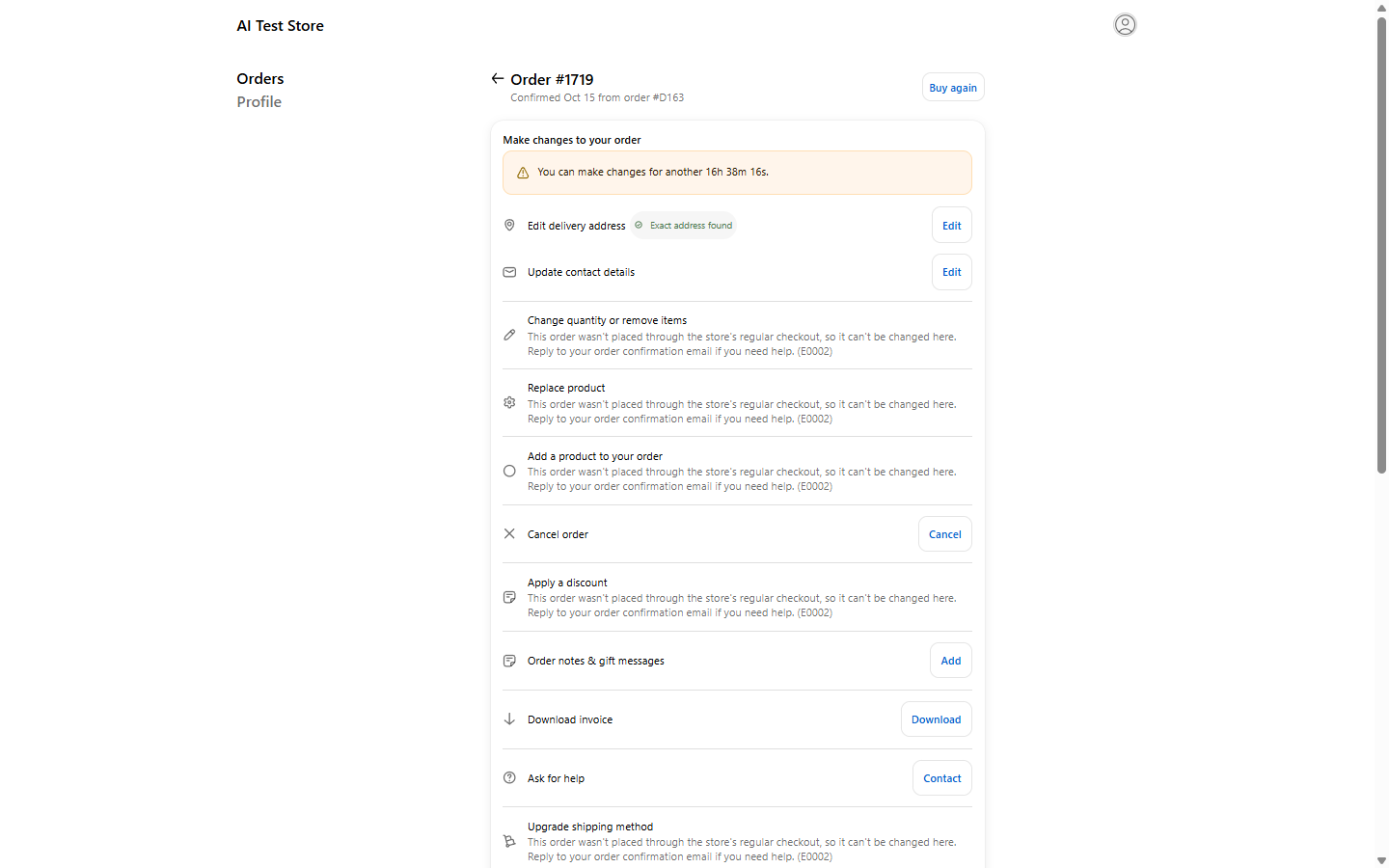
Shown on a test store, as a customer sees it.
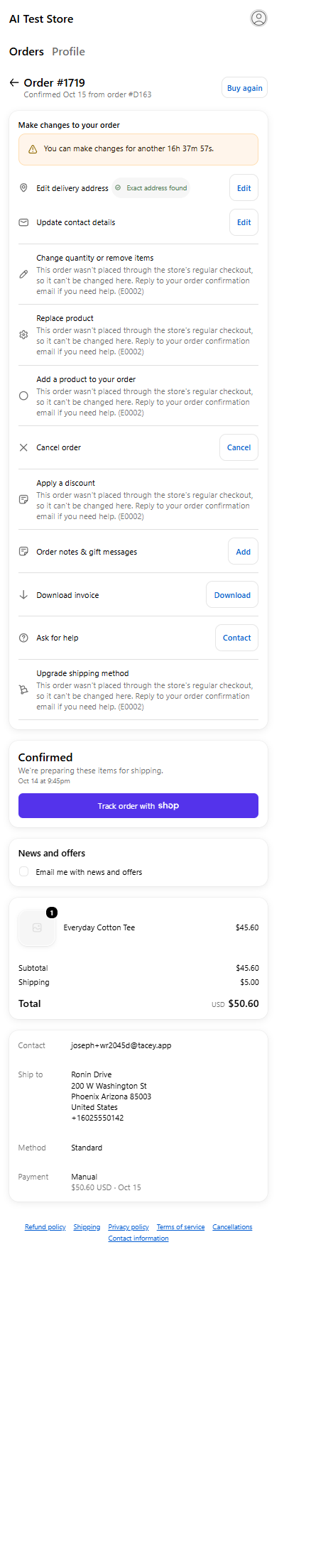
The same block at phone width.
If you uninstall and reinstall Tacey, add the block again
When you reinstall Tacey, Shopify removes Tacey's blocks from your Thank you and Order status pages. After a reinstall your customers see no Tacey tool until you add Tacey editing tools again on both pages, with no error anywhere to tell you.
Tacey watches for this. If your store was reinstalled and no customer has loaded the block since, your Tacey Home shows a warning, Tacey is not on your customers' order pages yet: You reinstalled Tacey, and Shopify removed its blocks from your thank-you and order status pages. Your customers will not see any Tacey tools there until you add the block again. In Shopify's checkout and customer accounts editor, choose Add block, then Tacey editing tools, and Save. Do this on the Thank you page and on the Order status page. It links to Open the checkout editor. The warning goes away on its own once a customer loads the block.
The fix is the steps above.
The Announcement bar is placed separately, as its own extension called Announcement, on each page. If you use it, check it too after a reinstall.
Tacey in your Shopify admin: nothing to place, except one card
The blocks above are for your customers. Tacey also adds things to your Shopify admin on each order, such as Open in Tacey, Merge with another order, Re-validate address, See customer's changes, Approve refund in Tacey and, on draft orders, Check address with Tacey. Those appear under More actions by themselves once Tacey is installed. The one thing you add yourself is the Tacey order summary card: open an order, scroll to Blocks, choose + Block, pick Tacey order summary, and pin it. Everything is explained in What does Tacey add to Shopify's order page, and how do I use it?.
What this does NOT do
- Tacey cannot add itself. Shopify requires every app to be placed by the merchant.
- Tacey cannot see your editor. On the Editing Tools page Tacey says: "Shopify gives us no way to see whether you have done this, so we will not tell you it is done." The dashboard only confirms it once a customer has actually seen it.
- Placing the blocks does not switch tools on. You also need Let customers edit their own order on, and at least one tool on, in Editing Tools.
Frequently asked
I added Tacey but my customers still see nothing. Why?
See Why can't my customers see Tacey on the Thank you or Order status page?.
Do I need to do this again when I turn on another tool?
No. Tacey editing tools shows every tool you have switched on. You only place it once per page.
Do I need to redo this if I change my checkout configuration?
If you switch to a different checkout configuration in Shopify, check that Tacey is placed on it too.