 tacey
 Install on Shopify

If Tacey's block, "Make changes to your order", does not appear for your customers, one of a handful of things is missing. Nothing shows an error when this happens, so work through this list in order.
1. Is Tacey added to the page in Shopify's editor?
This is the most common cause by far. Installing Tacey does not put it on any page. You add Tacey editing tools yourself in Shopify's checkout and accounts editor (Add block, then Tacey editing tools, then Save), once for the Thank you page and once for the Order status page.
Open the editor (Open the checkout editor on your Tacey dashboard, or Settings > Checkout > Edit in Shopify), click Apps, and check the Added count for Tacey. If it reads 0, follow How do I add Tacey to my Shopify Thank you and Order status pages?.
Remember that each page is separate. Tacey can be on the Thank you page and missing from Order status, or the other way round.
When Tacey editing tools is placed and working, the Order status page looks like this:
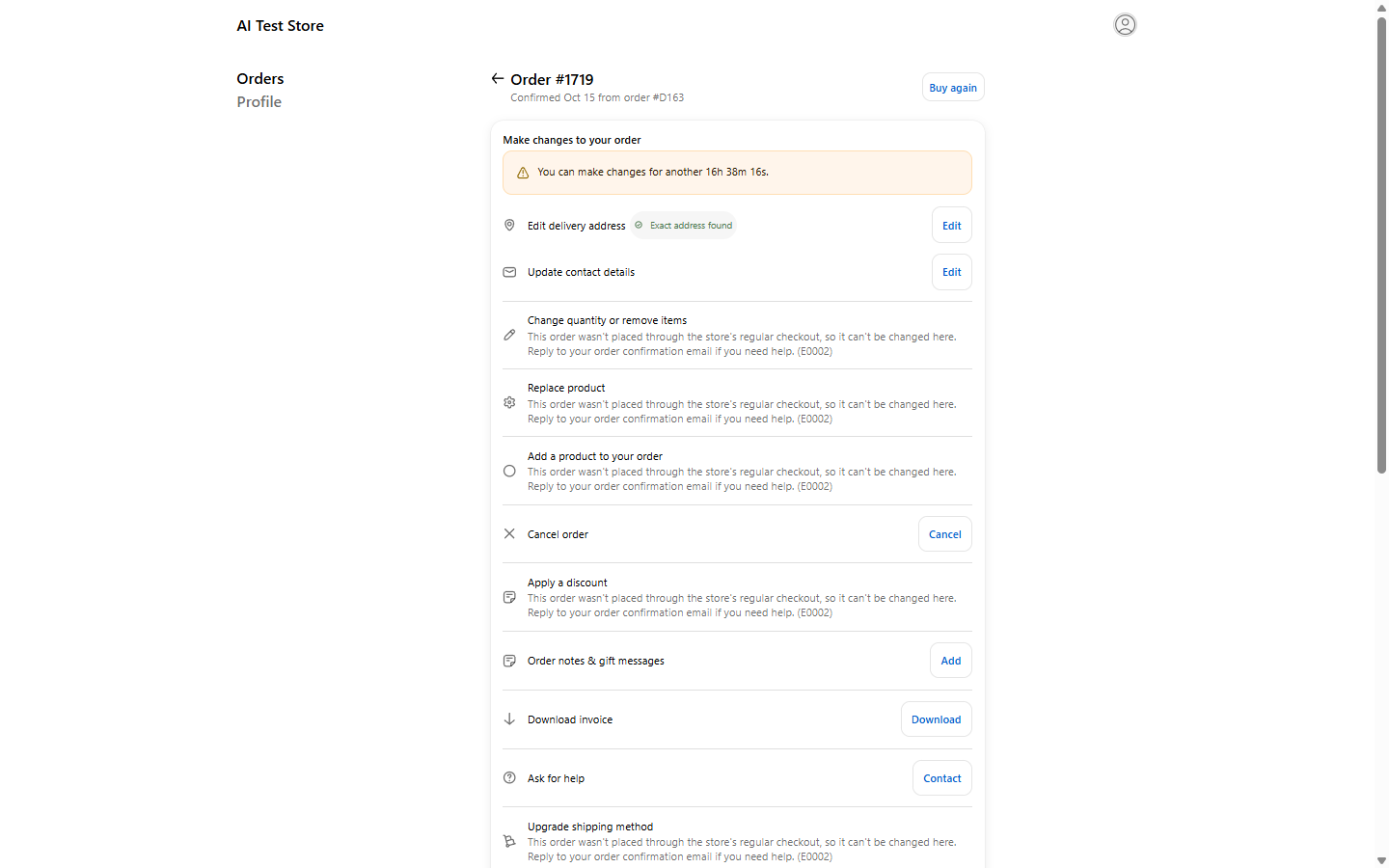
Shown on a test store, as a customer sees it.
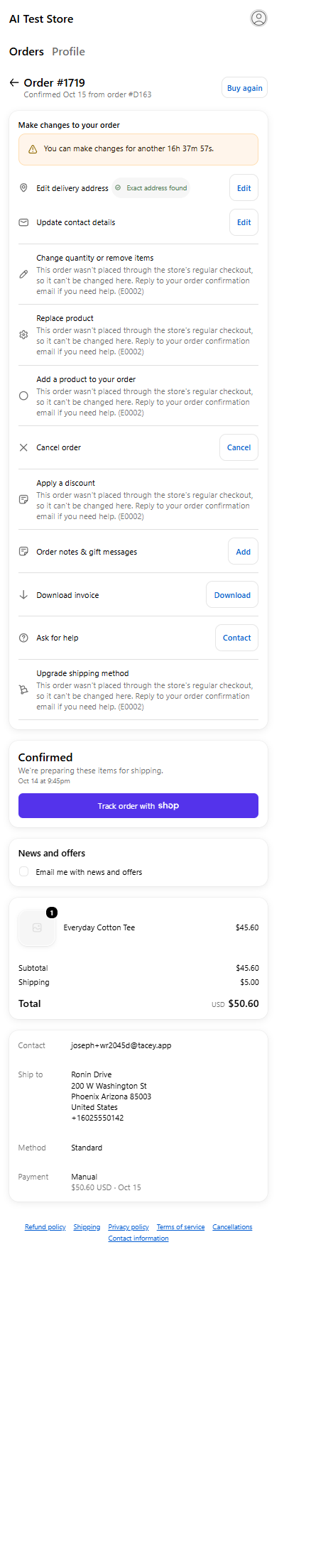
The same block at phone width.
2. Is "Let customers edit their own order" on?
In Tacey, go to Editing Tools > Global settings and check Let customers edit their own order is on. It is off until you turn it on.
When it is off, Tacey's own preview says: "Order editing is switched off, so your block does not appear at all."
3. Is at least one tool switched on?
Go to Editing Tools. If no tool is on, there is nothing to show. The preview says: "No tools are on, so your customers see nothing here yet."
If a tool is on but shows under Needs your attention, it is "Switched on, but missing something a customer needs." Click Finish setup to see what is missing.
4. Is the order still inside the edit window?
Customers can only make changes for the time you set as your edit window, counted from when the order was placed. After that, the customer sees: "The time to make changes to this order has passed. Reply to your order confirmation email if you still need a change."
Check How long the window stays open in Editing Tools > Global settings.
5. Is this an order Tacey will not offer changes on?
Some orders cannot be edited online, and Tacey says so rather than guessing. For example:
- orders paid with Shop Pay Installments
- orders created by another app
- local delivery orders
- orders where payment is still pending
- orders placed before 2019
- orders that are already fulfilled
- orders matching one of your Restrictions
6. Are you looking at the right page?
- The Thank you page only appears once, right after a real checkout.
- The Order status page is reached from the order confirmation email, or from your admin: open the order and choose More actions > View order status page.
7. Is Draft mode on?
While Draft mode is on, only orders placed with one of your staff emails or domains show Tacey. Every other customer sees nothing, exactly as if Tacey were not installed. Tacey shows a yellow Draft mode is on banner at the top of Editing Tools and on each tool's page. Open Editing Tools, then Global settings, and under Draft mode either add the email on the order to Staff emails and domains or switch off Show Tacey only to my team, then click Save. See How do I test Tacey on a real order before my customers see it? (Draft mode).
8. Did you reinstall Tacey?
Reinstalling Tacey makes Shopify remove Tacey's blocks from the Thank you and Order status pages, so the tools disappear for every customer until you add Tacey editing tools again on both pages in Shopify's checkout and customer accounts editor and click Save. Tacey's Home shows a warning, Tacey is not on your customers' order pages yet, when it notices. See How do I add Tacey to my Shopify Thank you and Order status pages?.
9. Have you used every order your plan includes?
When you have used every order your plan includes for the window, Tacey stops handling new orders and emails you the name of the next plan. A customer who ordered after that point has no editing tools. Check Billing, and see How does Tacey count my orders?.
How Tacey confirms it is working
The setup checklist on your Tacey dashboard shows Confirmed under Add Tacey to your checkout and order status page the first time a customer views an order with Tacey on it. If that says "Not yet confirmed", no customer has seen Tacey's block yet.
What this does NOT do
- Tacey cannot see Shopify's editor, so it cannot warn you that the block is missing. It can only confirm once a customer has actually seen it.
- Turning a tool on in Tacey does not place the block. Both steps are needed.